Availability
Stock Availability
Each stock item represents a physical quantity of a particular part in a specific location. Given the complexities of tracking stock across multiple locations, reservations, and allocations, it is important to understand whether a stock item is actually available for use.
There are multiple terms used in InvenTree to describe stock availability:
Required
The Required quantity indicates the total number of a certain part that is needed to fulfill all current orders, builds, or other commitments. This is independent of the actual stock levels.
In Stock
The In Stock quantity represents the total number of items physically present in the stock location, regardless of their allocation or reservation status.
For example, if a stock item has a quantity of 100, it means there are 100 units of that part physically present in the specified location.
Allocated
The Allocated quantity indicates the number of stock items that have been reserved for specific orders, builds, or other commitments. This number is specified against each stock item when it is allocated.
Note that the Allocated quantity is always less than or equal to the In Stock quantity.
For example, if a stock item has an In Stock quantity of 100, and 30 units have been allocated to fulfill orders, then the Allocated quantity is 30. In this case the In Stock quantity remains 100, until the alloacted quantity is actually consumed.
Available
The Available quantity for a given stock item is the difference between the In Stock quantity and the Allocated quantity.
For example, if a stock item has an In Stock quantity of 100, and 30 units have been allocated, then the Available quantity is 70.
Consumed or Depleted Stock
Once allocated stock quantities are consumed (e.g. when fulfilling an order or completing a build), the In Stock quantity of the stock item is reduced accordingly. This means that the Available quantity is also reduced.
Delete on Deplete
Stock items can be designated with the Delete on Deplete flag. When this flag is set, if the stock quantity of the item reaches zero, the stock item will be automatically deleted from the system.
Part Stock Levels
There are multiple ways to view the overall stock levels for a given part across all stock items and locations.
Stock Overview
Each part page displays an overview of the stocktotal stock levels across all locations. This page shows the total In Stock, Allocated, and Available quantities for the part, aggregated across all stock items:

In the example above, the "Red Widget" part has the following stock levels:
| Metric | Quantity | Description |
|---|---|---|
| In Stock | 138 | There are 138 physical units of the Red Widget part across all stock locations. |
| Available | 123 | Only 123 units are available for allocation, as 15 units have already been allocated to fulfill orders. |
| Required | 657 | A total of 657 units of the Red Widget part are needed to fulfill all current orders and builds. |
| Deficit | 519 | There is a deficit of 519 units, meaning that the current available stock is insufficient to meet the required quantity. |
Stock Details
The Part Detail view displays additional information regarding the stock levels for the part:

Here we can see that:
- There are 138 units of the Red Widget part physically in stock across all locations.
- Of this quantity, 15 units have been allocated to fulfill orders, leaving 123 units available for allocation.
- A total of 657 units are required to fulfill all current orders and builds.
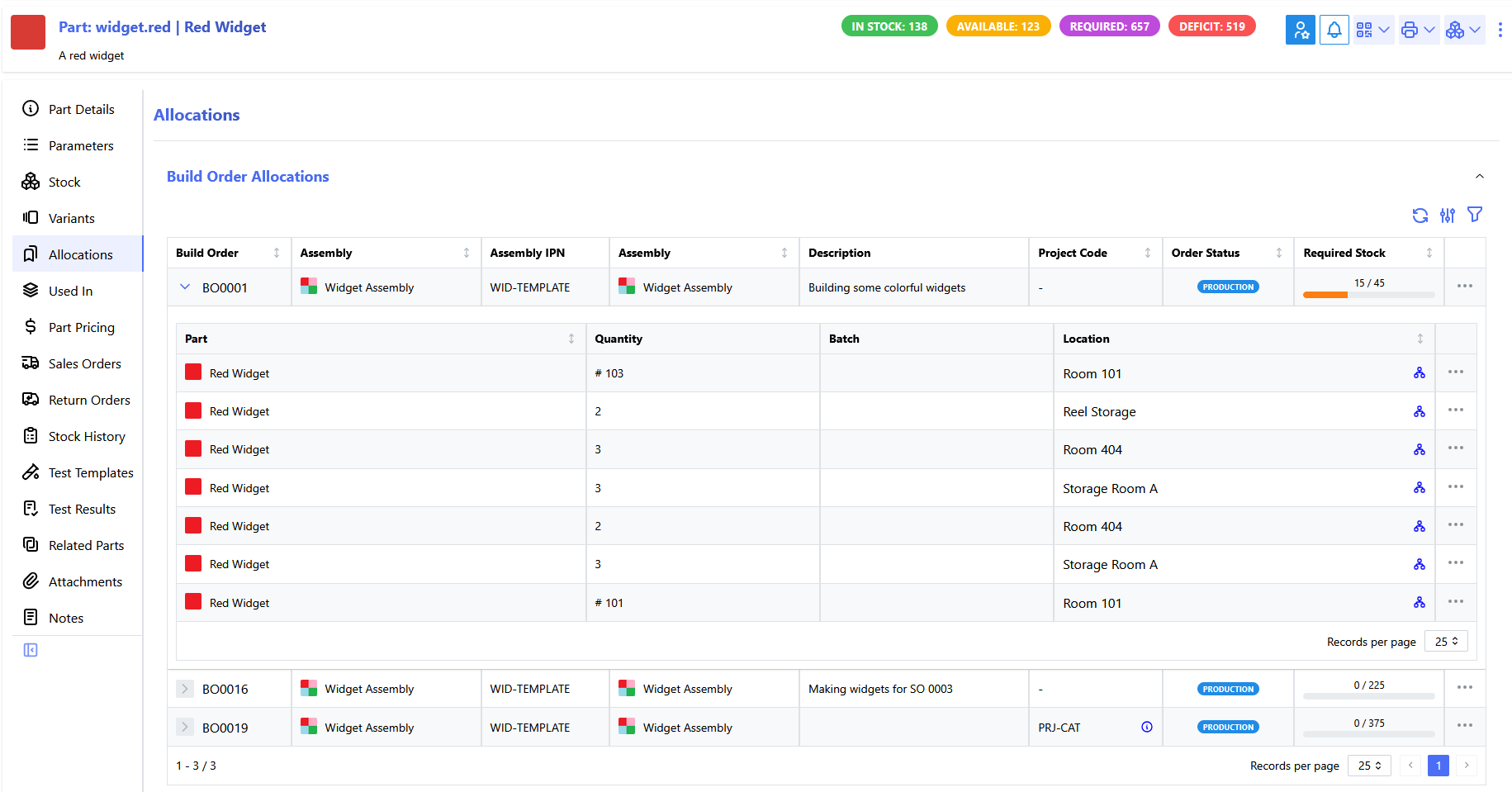
- 645 units are required to fulfil outstanding build orders, of which 15 units have already been allocated.
- 12 units are required to fulfil outstanding sales orders, none of which have been allocated yet.
Allocations Tab
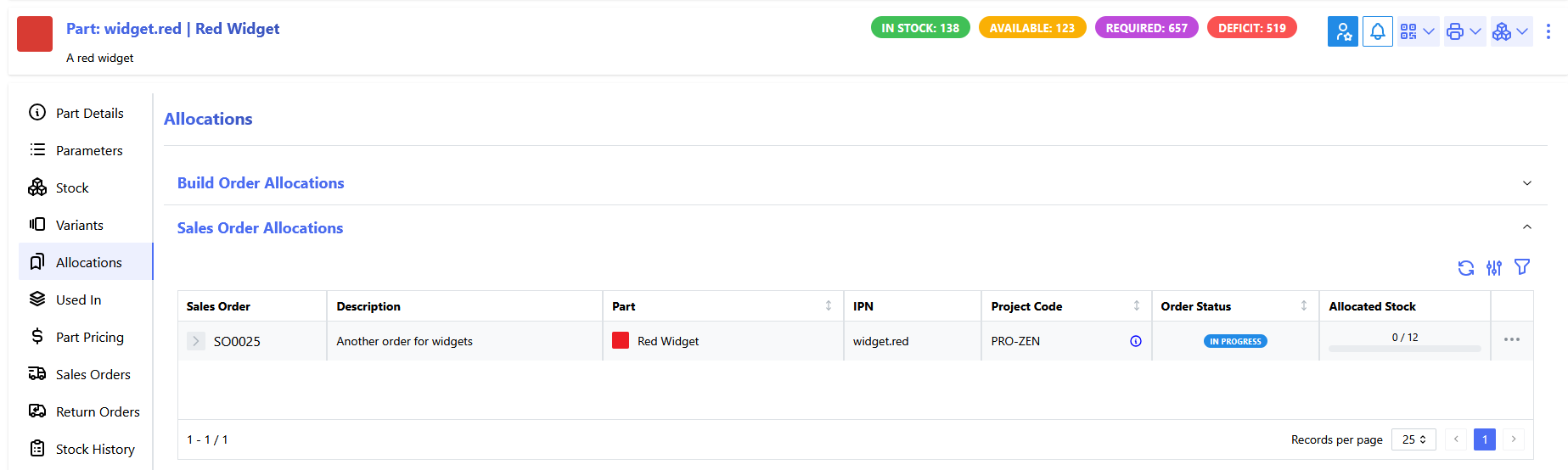
To view further details regarding which stock items have been allocated, the Allocations tab on the part view can be used.
This tab displays a complete overview of where the stock items for this part are allocated, against any open orders:
Build Order Allocations
Sales Order Allocations