Creating Parts
Part Creation
New parts can be created manually via the web interface, or imported from an external source.
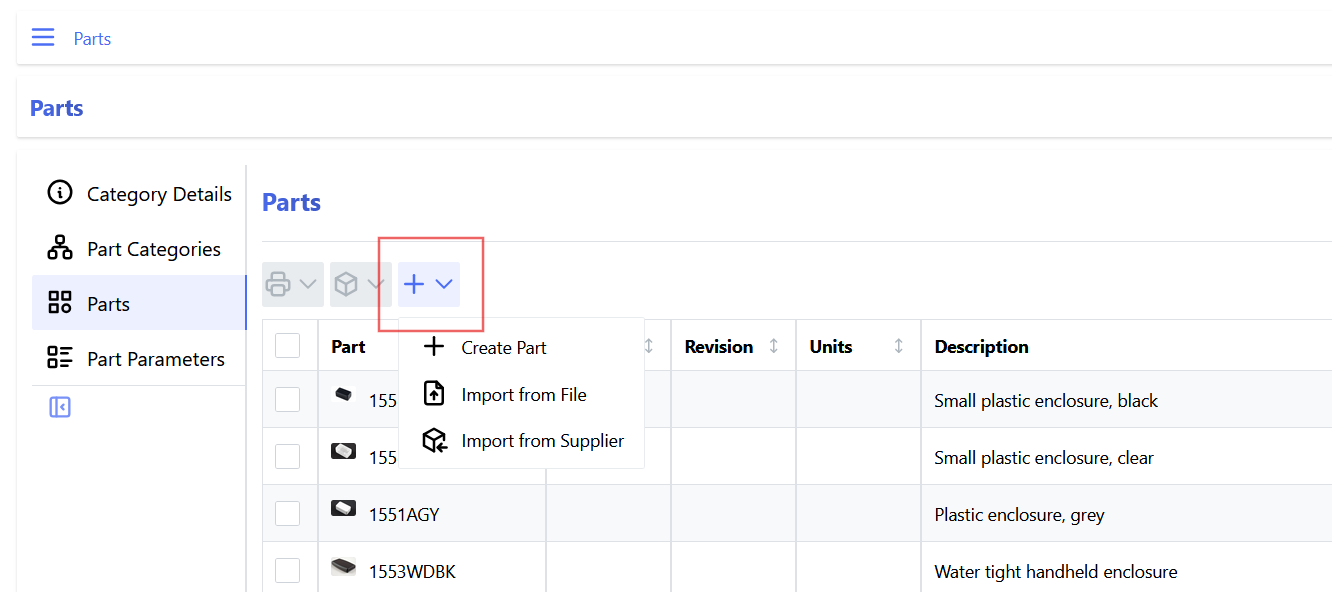
To create or import a part, navigate to the Parts view in the user interface, and select the Add Parts dropdown menu above the parts table:
Permissions
If the user does not have "create" permission for the Part permission group, the Add Parts menu will not be available.
Create Part Form
New parts can be created manually by selecting the Create Part option from the menu. A part creation form is opened as shown below:
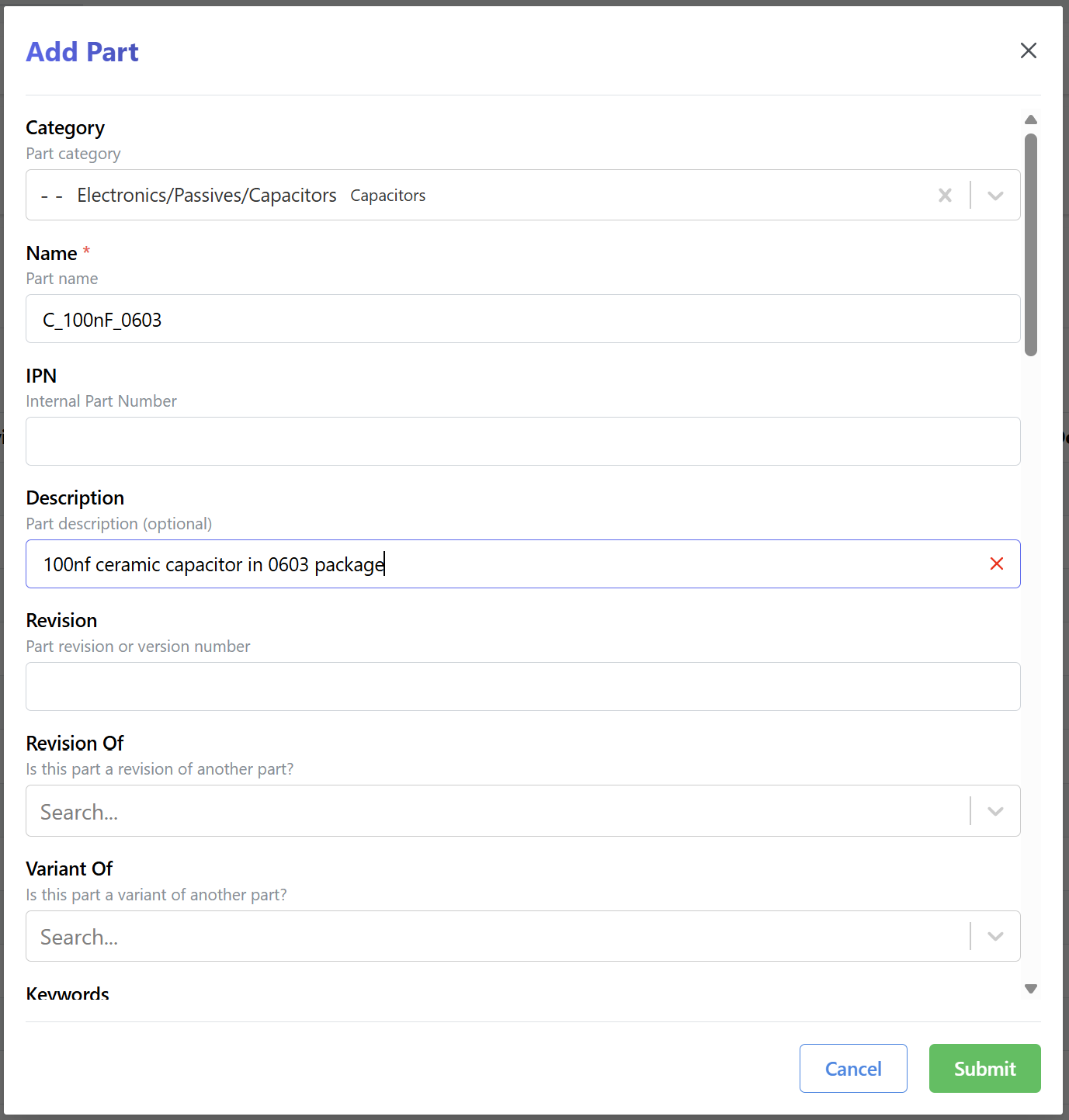
Fill out the required part parameters and then press Submit to create the new part. If there are any form errors, you must fix these before the form can be successfully submitted.
Once the form is completed, the browser window is redirected to the new part detail page.
Initial Stock
If the Create Initial Stock setting is enabled, then an extra section is available in the part creation form to create an initial quantity of stock for the newly created part:
If this setting is enabled, the following elements are available in the form:
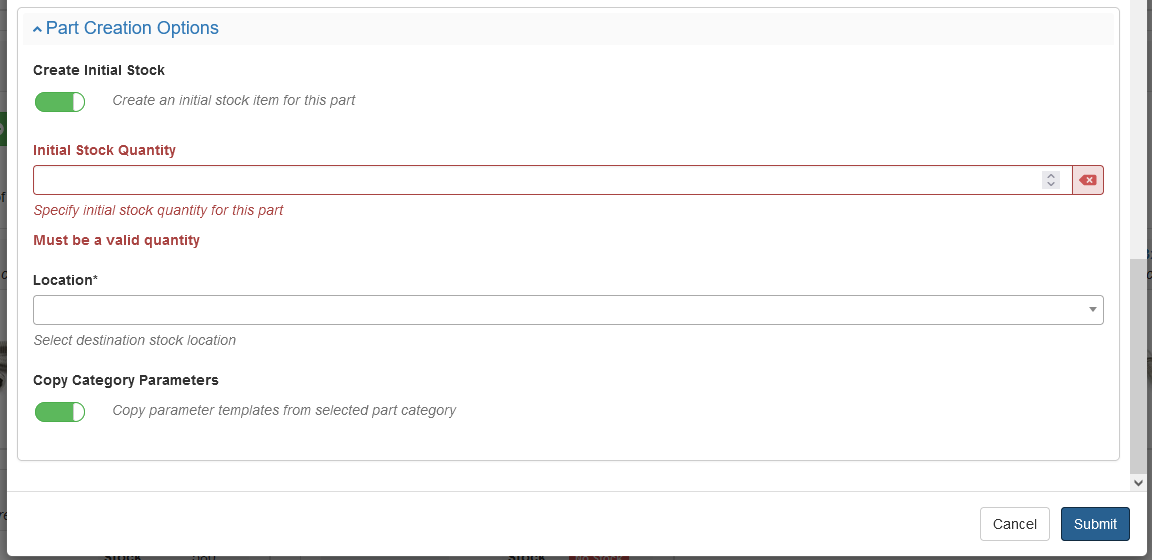
Checking the Create Initial Stock form input then allows the creation of an initial quantity of stock for the new part.
Supplier Options
If the part is marked as Purchaseable, the form provides some extra options to initialize the new part with manufacturer and / or supplier information:
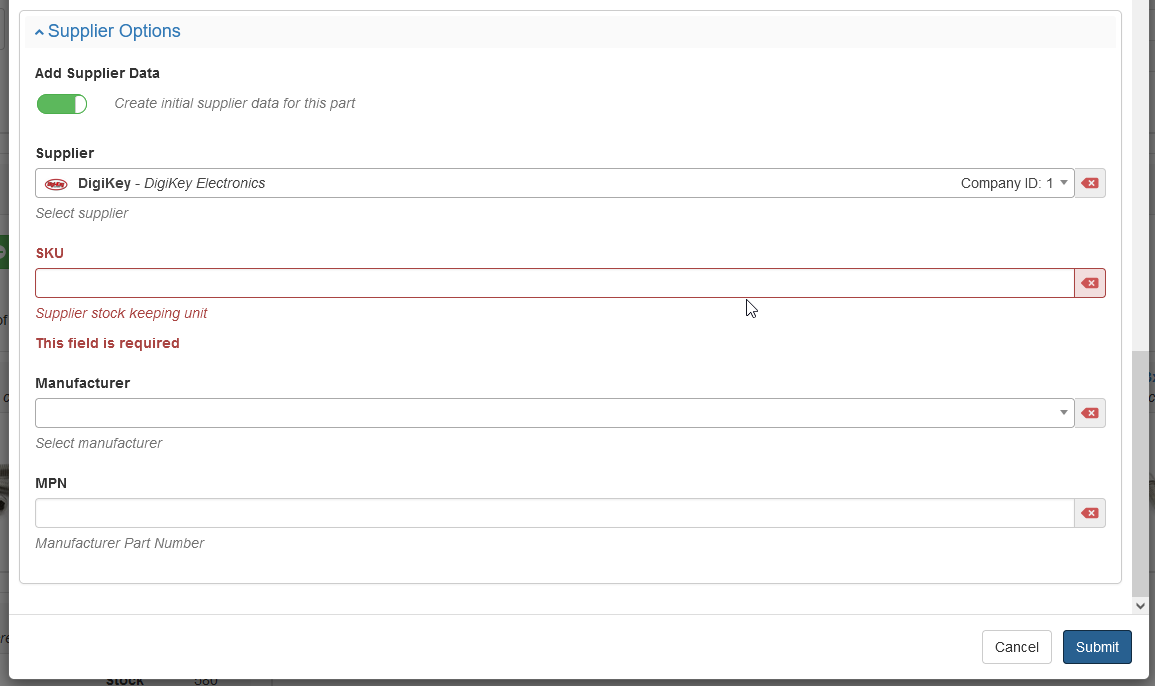
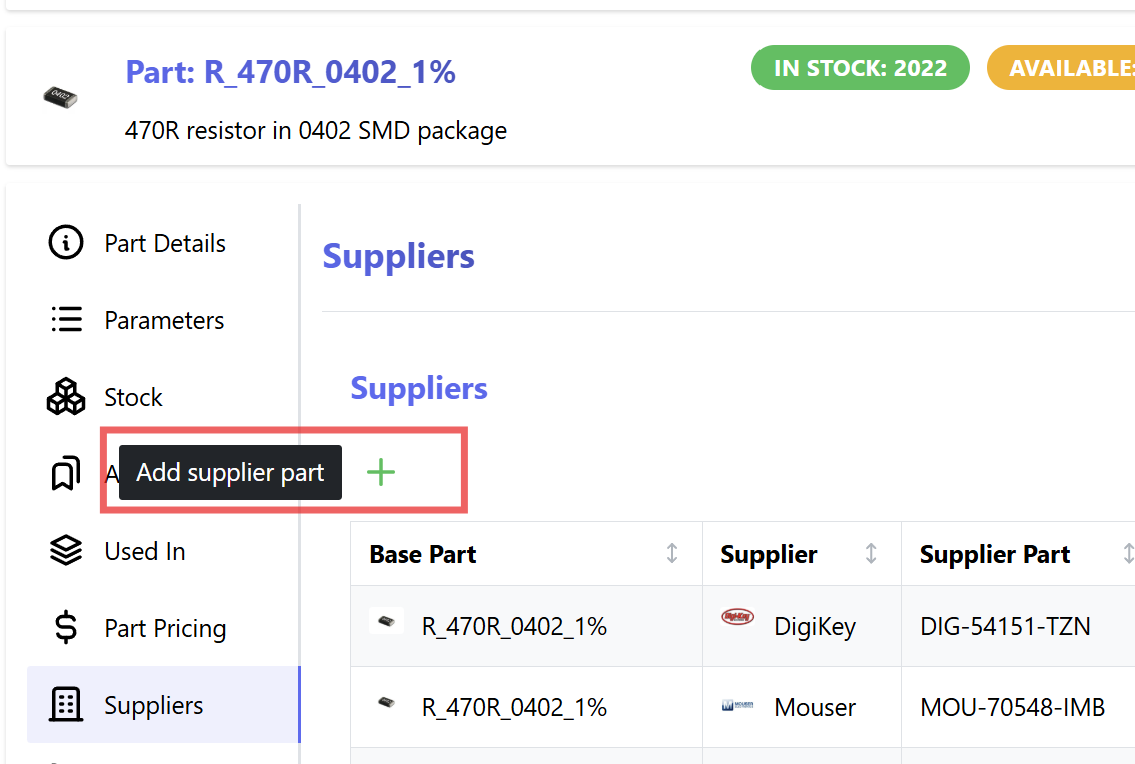
If the Add Supplier Data option is checked, then supplier part and manufacturer part information can be added to the newly created part:
Import from File
Parts can be imported from an external file, by selecting the Import from File option.
This action opens the data import wizard, which steps the user through the process of importing parts from the selected file.
Import from Supplier
InvenTree can integrate with external suppliers and import data from them, which helps to setup your system. Currently parts, supplier parts and manufacturer parts can be created automatically.
Plugin Required
To import parts from a supplier, you must install a plugin which supports that supplier.
Requirements
- Install a supplier mixin plugin for you supplier
- Goto "Admin Center > Plugins > [The supplier plugin]" and set the supplier company setting. Some plugins may require additional settings like API tokens.
Import a part
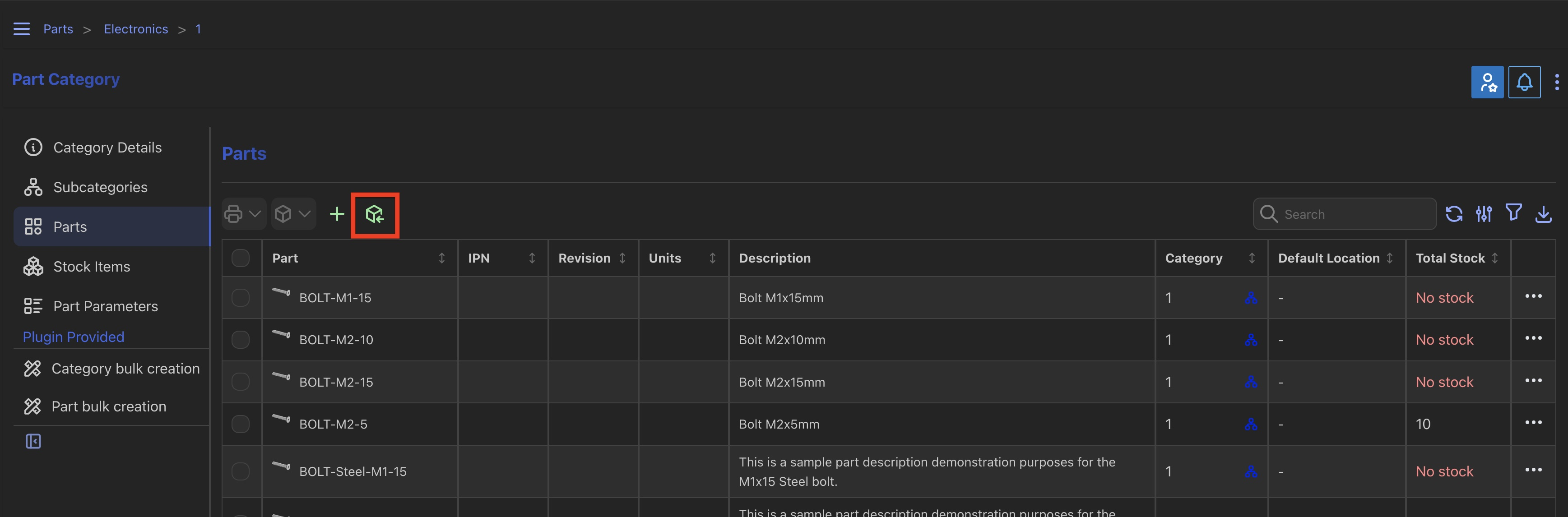
New parts can be imported from the Part Category view, by pressing the Import Part button:
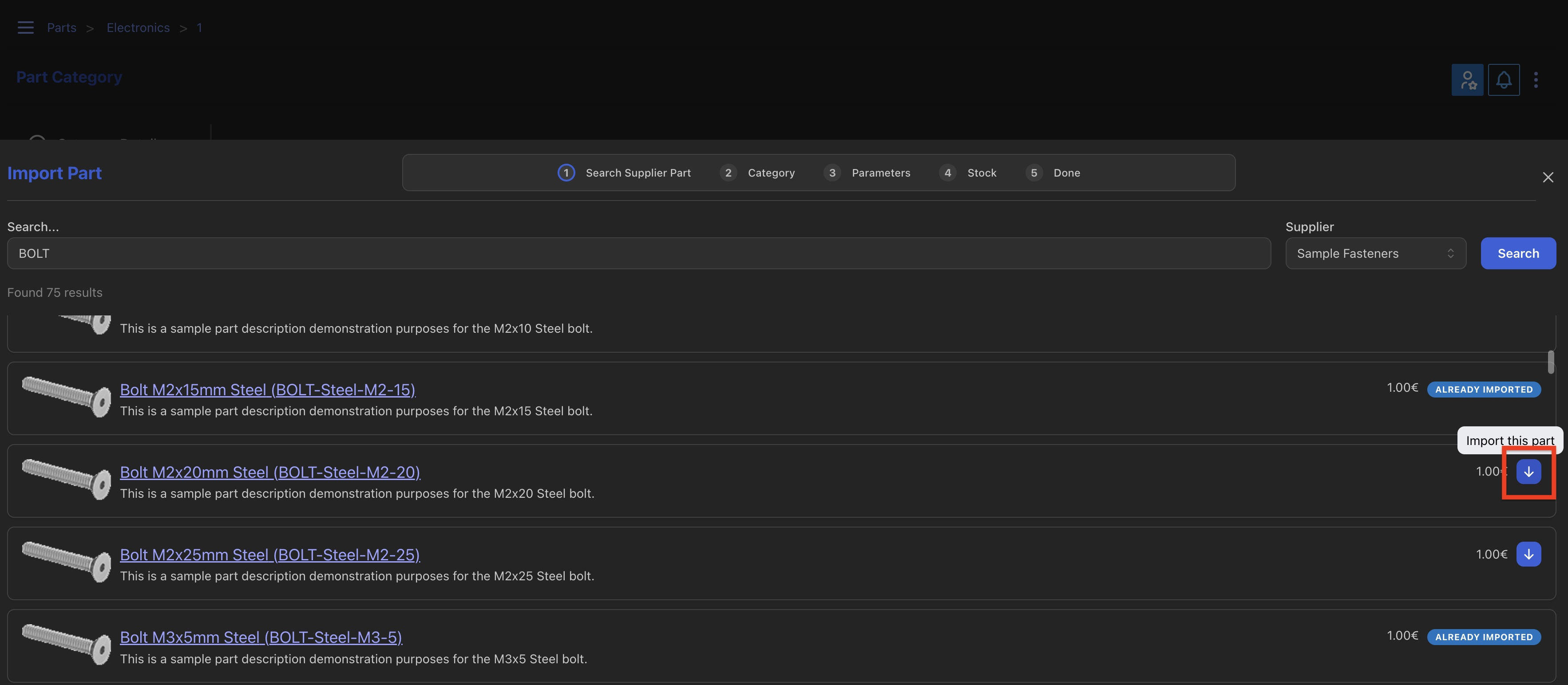
Then just follow the wizard to confirm the category, select the parameters and create initial stock.
Import a supplier part
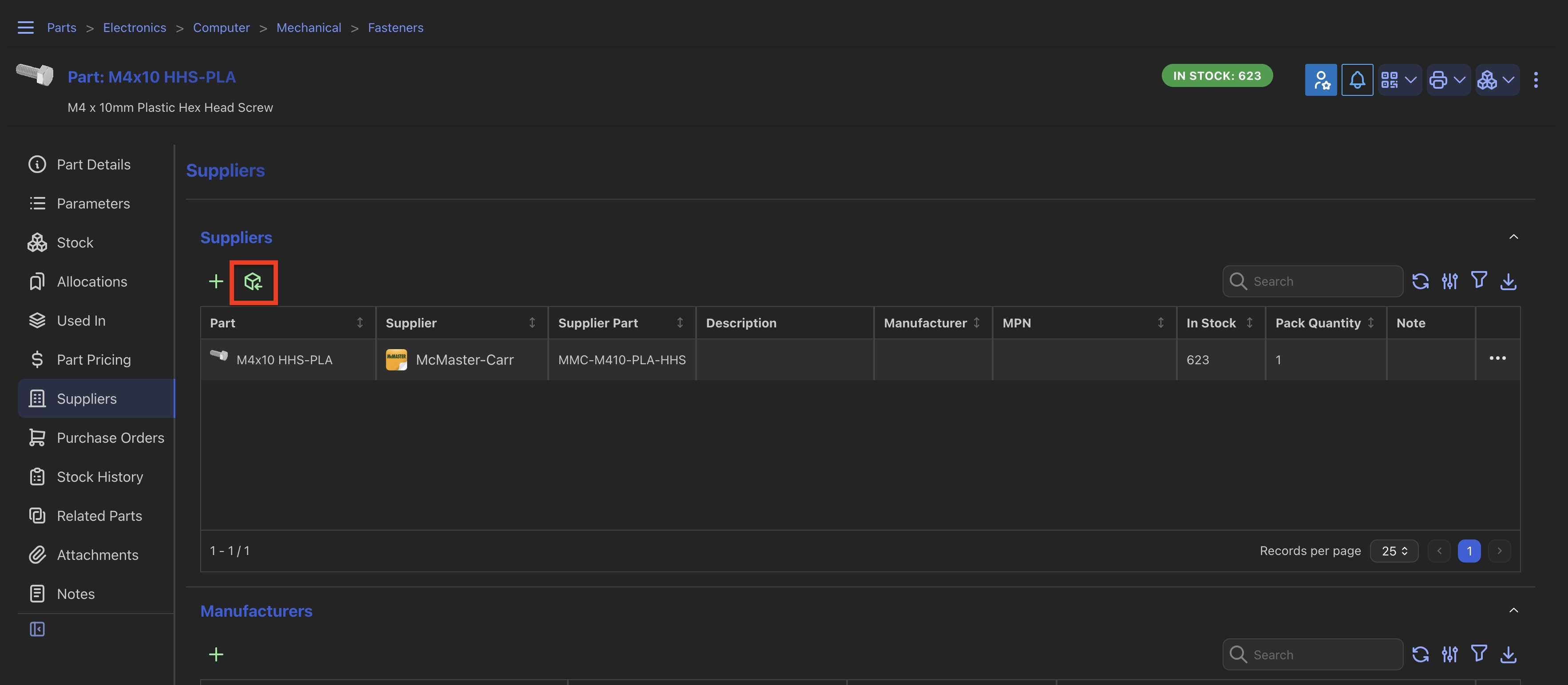
If you already have the part created, you can also just import the supplier part with it's corresponding manufacturer part. Open the supplier panel for the part and use the "Import supplier part" button:
Other Part Creation Methods
In addition to the primary methods for creating or importing part data, the following methods are supported: