Parameters
Parameters
A parameter describes a particular "attribute" or "property" of a specific object in InvenTree. Parameters allow for flexible and customizable data to be stored against various InvenTree models.
Business Logic
Parameters are not used for any core business logic within InvenTree. They are intended to provide additional metadata for objects, which can be useful for documentation, filtering, or reporting purposes.
Parameters can be associated with various InvenTree models.
Parameter Tab
Any model which supports parameters will have a "Parameters" tab on its detail page. This tab displays all parameters associated with that object:
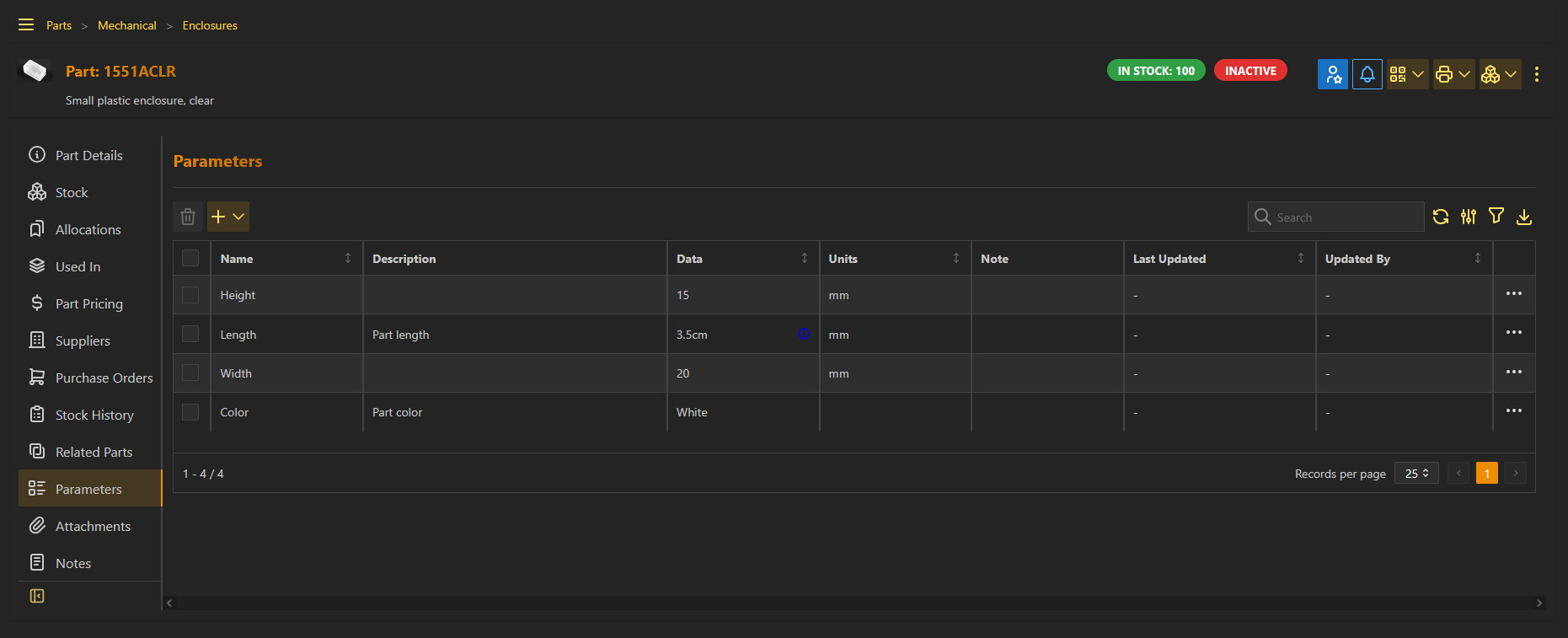
Parameter Templates
Parameter templates are used to define the different types of parameters which are available for use. The following attributes are defined for a parameter template:
| Attribute | Description |
|---|---|
| Name | The name of the parameter template (must be unique) |
| Description | Optional description for the template |
| Units | Optional units field (must be a valid physical unit) |
| Model Type | The InvenTree model to which this parameter template applies (e.g. Part, Company, etc). If this is left blank, the template can be used for any model type. |
| Choices | A comma-separated list of valid choices for parameter values linked to this template. |
| Checkbox | If set, parameters linked to this template can only be assigned values true or false |
| Selection List | If set, parameters linked to this template can only be assigned values from the linked selection list |
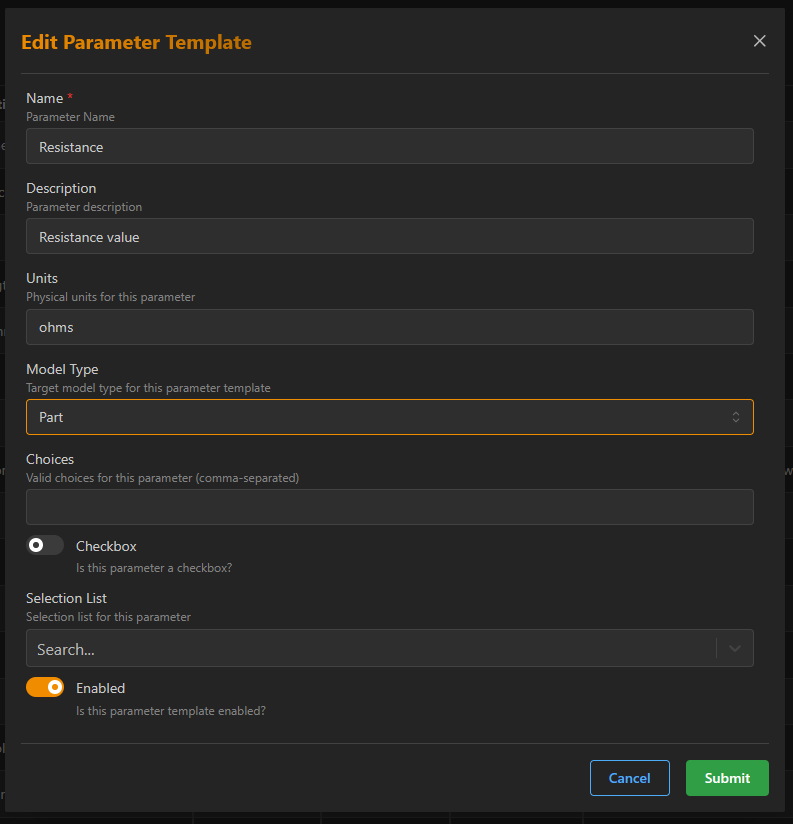
Create Template
Parameter templates are created and edited via the admin interface.
To create a template:
- Navigate to the "Settings" page
- Click on the "Part Parameters" tab
- Click on the "New Parameter" button
- Fill out the
Create Part Parameter Templateform:Name(required) andUnits(optional) fields - Click on the "Submit" button.
An existing template can be edited by clicking on the "Edit" button associated with that template:
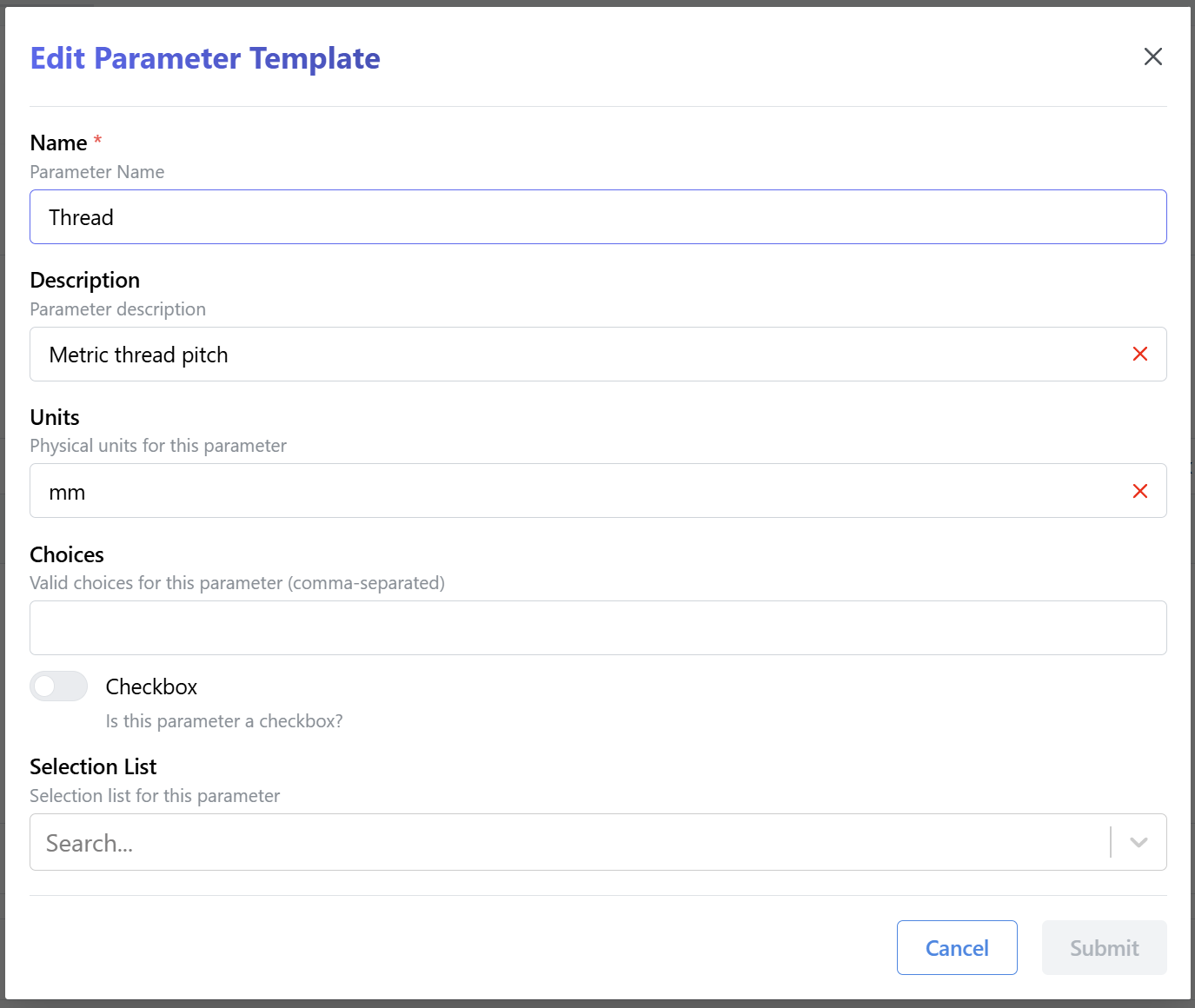
Create Parameter
After creating a template or using the existing templates, you can add parameters to any part.
To add a parameter, navigate to a specific part detail page, click on the "Parameters" tab then click on the "New Parameters" button, the Create Part Parameter form will be displayed:
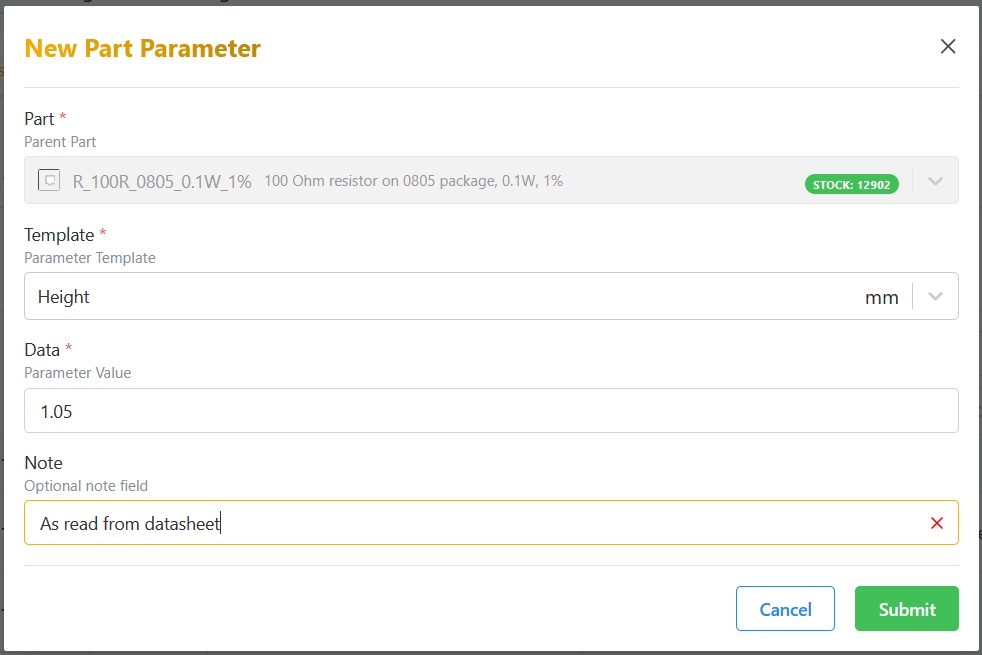
Select the parameter Template you would like to use for this parameter, fill-out the Data field (value of this specific parameter) and click the "Submit" button.
Parametric Tables
Parametric tables gather all parameters from all objects of a particular type, to be sorted and filtered.
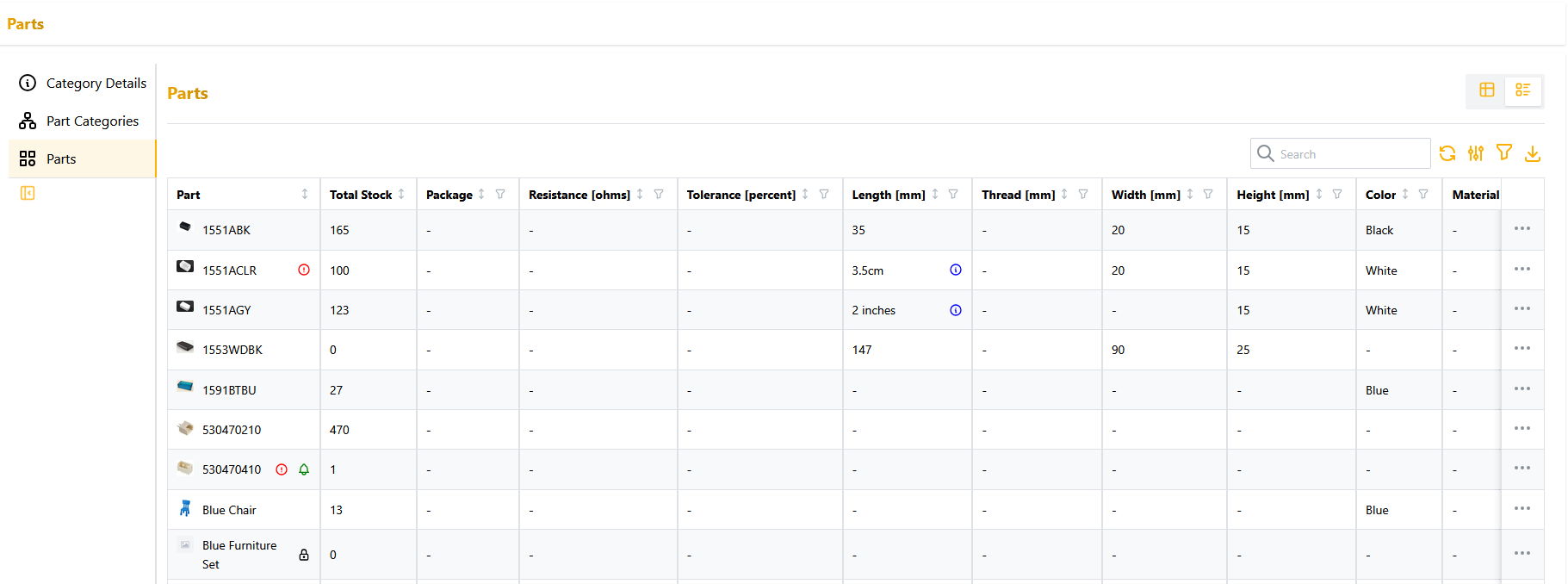
Tables views which support parametric filtering and sorting will have a "Parametric View" button above the table:
Sorting by Parameter Value
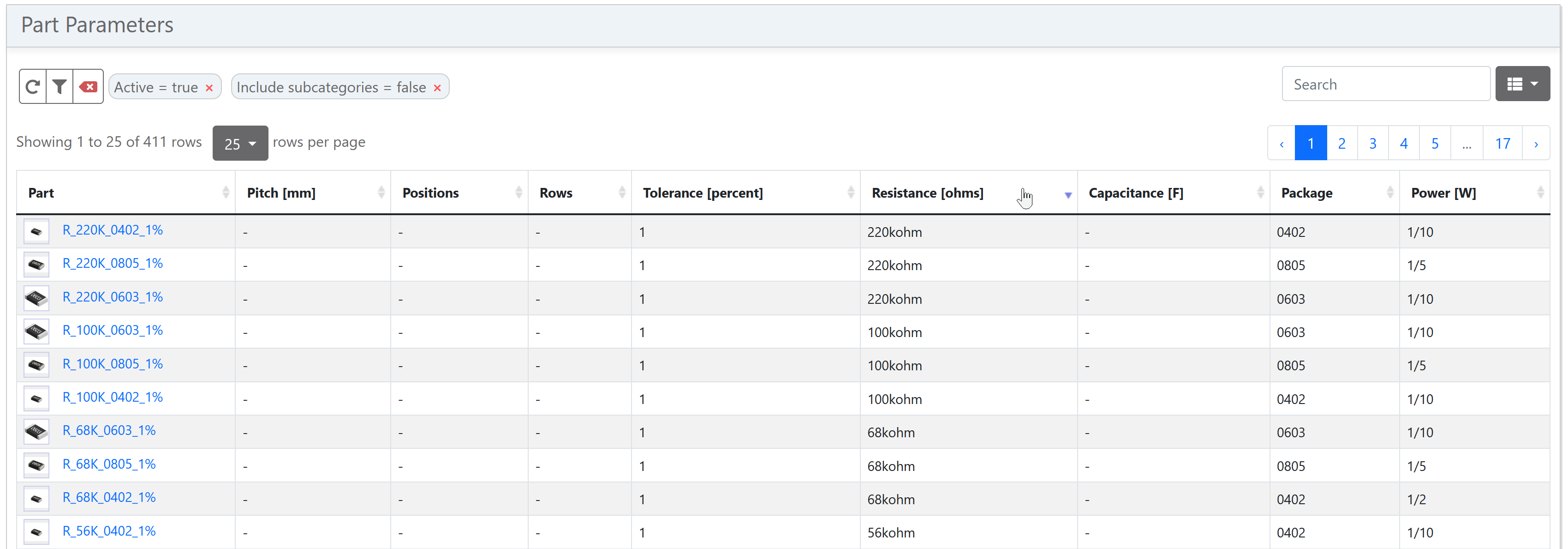
The parametric parts table allows the returned parts to be sorted by particular parameter values. Click on the header of a particular parameter column to sort results by that parameter:
Filtering by Parameter Value
The parametric parts table allows the returned parts to be filtered by particular parameter values. Click on the button associated with the particular parameter, and enter the value you wish to filter against:
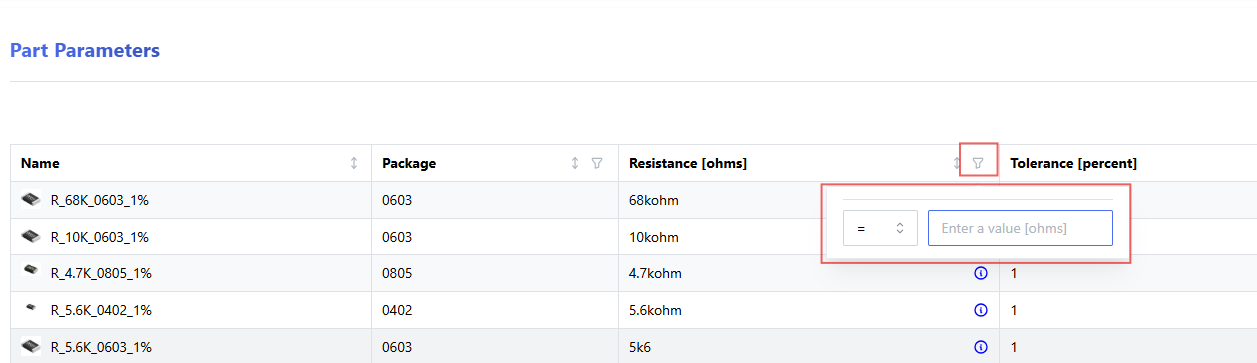
The available filter options depend on the type of parameter being filtered. For example, a parameter with a limited set of choices will allow you to filter by those choices, while a numeric parameter will allow you to filter against a specific value and operator (e.g. greater than, less than, etc.).
Filtering by Multiple Parameters
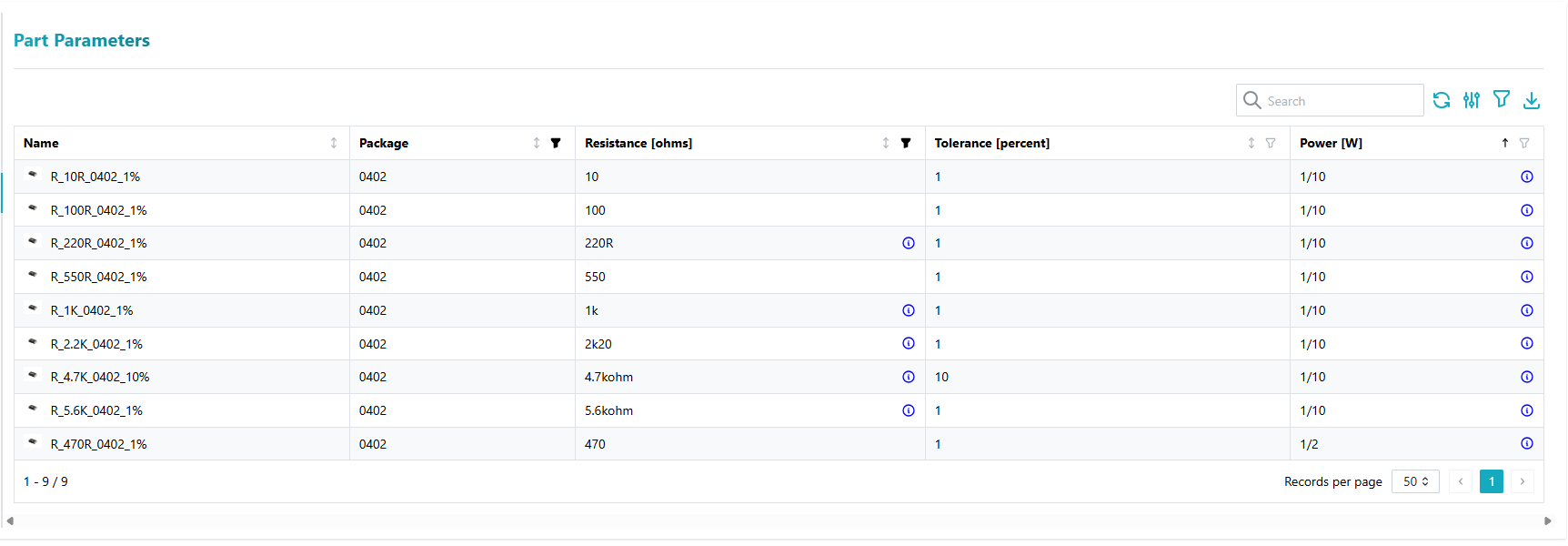
Multiple parameters can be used to filter the parametric table. Simply add a new filter for each parameter you wish to filter against. The results will be filtered to include only parts which match all of the specified filters.
Each parameter column indicates whether a filter is currently applied:
Multiple Filters Against the Same Parameter
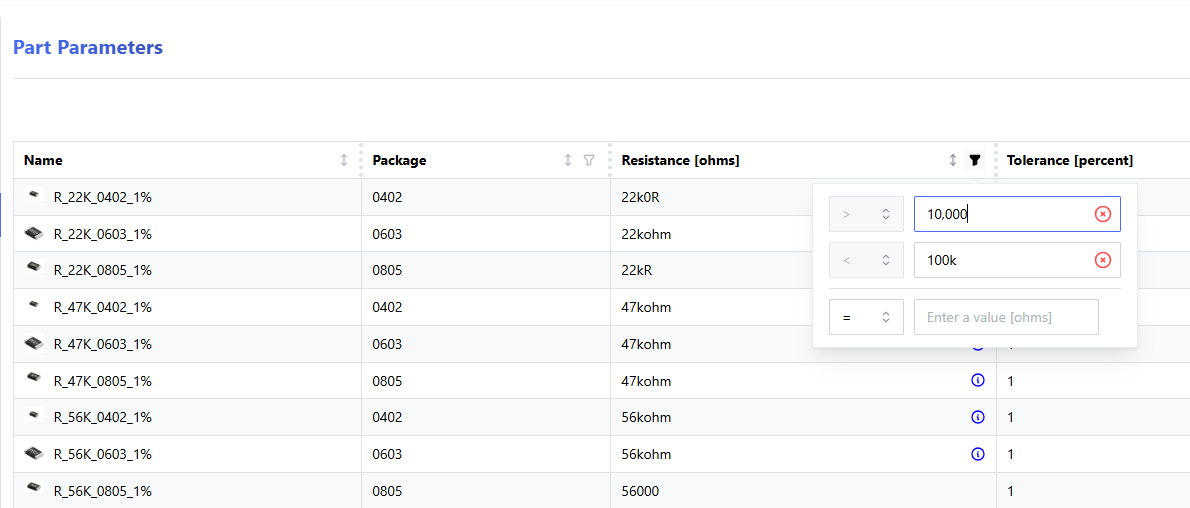
It is possible to apply multiple filters against the same parameter. For example, you can filter for parts with a Resistance parameter greater than 10kΩ and less than 100kΩ by adding two filters for the Resistance parameter:
Unit-Aware Filtering
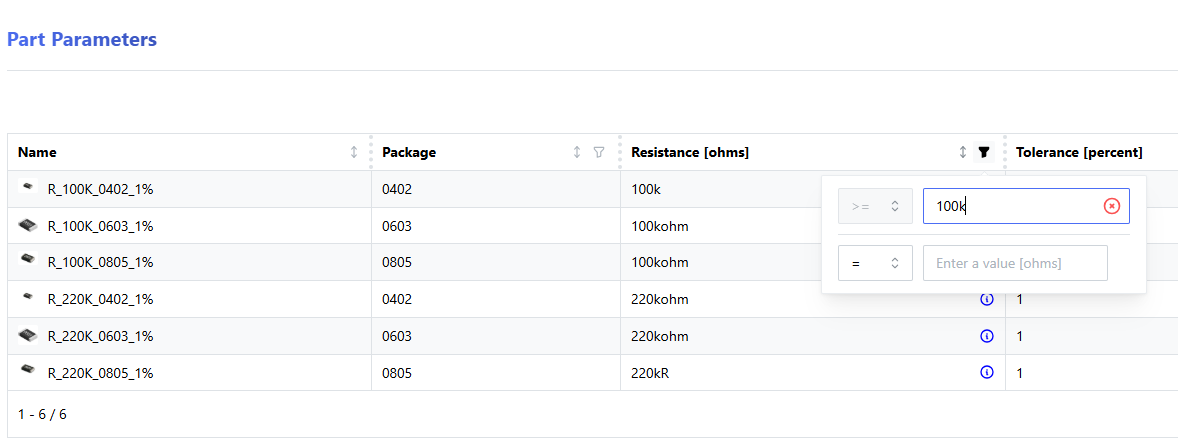
When filtering against a parameter which has a unit defined, you can specify the value in any compatible unit. The system will automatically convert the value to the base unit defined for that parameter template.
For example, to show all parts with a Resistance parameter of greater than 10kΩ, you can enter 10k or 10000 in the filter field, and the system will correctly interpret this as 10,000 ohms.
Removing Filters
To remove a filter against a given parameter, click on the button associated with that filter:

Available Filter Operators
The following filter operators are available for parameter filtering:
=: Equal to>: Greater than>=: Greater than or equal to<: Less than<=: Less than or equal to!=: Not equal to~: Contains (for text parameters)
Parameter Units
The units field (which is defined against a parameter template) defines the base unit of that template. Any parameters which are created against that unit must be specified in compatible units.
The in-built conversion functionality means that parameter values can be input in different dimensions - as long as the dimension is compatible with the base template units.
Read Mode
Read more about how InvenTree supports physical units of measure
Incompatible Units
If a part parameter is created with a value which is incompatible with the units specified for the template, it will be rejected:
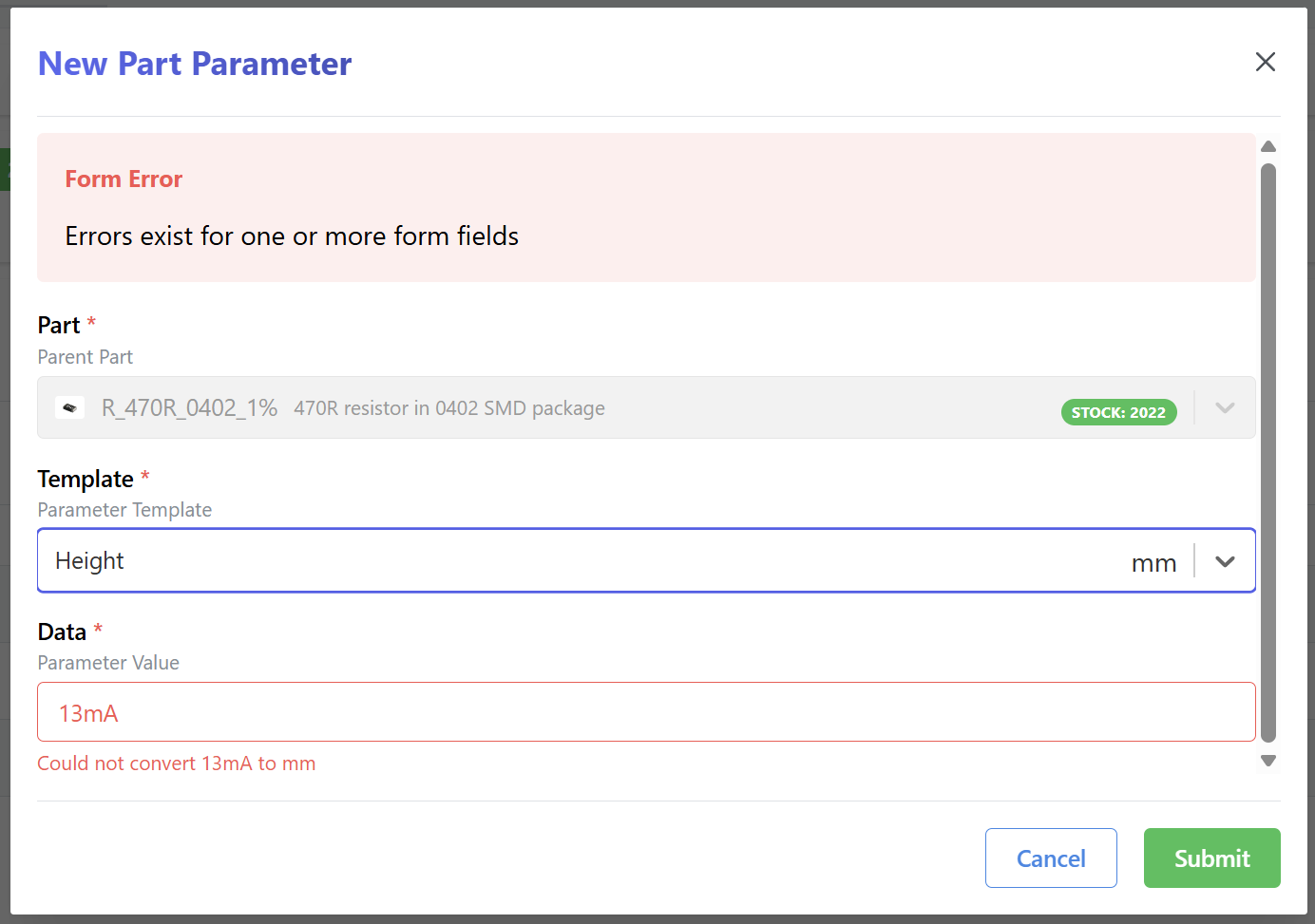
This behaviour can be disabled if required, so that any parameter value is accepted.
Parameter Unit Sorting
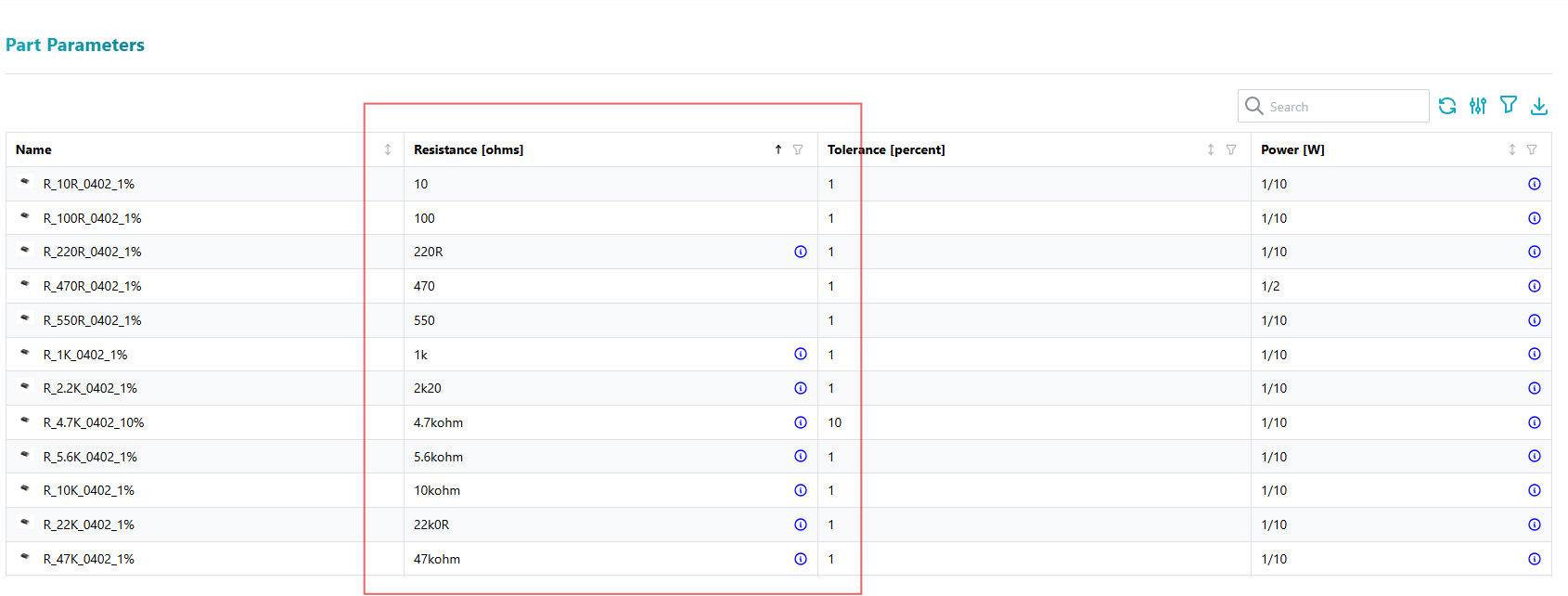
Parameter sorting takes unit conversion into account, meaning that values provided in different (but compatible) units are sorted correctly:
Selection Lists
Selection Lists can be used to add a large number of predefined values to a parameter template. This can be useful for parameters which must be selected from a large predefined list of values (e.g. a list of standardized color codes). Choices on templates are limited to 5000 characters, selection lists can be used to overcome this limitation.
It is possible that plugins lock selection lists to ensure a known state.
Administration of lists can be done through the Part Parameter section in the Admin Center or via the API.