Barcode Support
Barcode Support
InvenTree has native support for barcodes, which provides powerful functionality "out of the box", and can be easily extended:
- Barcodes can be scanned via the API
- The web interface supports barcode scanning
- Barcodes integrate natively with the mobile app
- Custom barcodes can be assigned to items
- Barcodes can be embedded in labels or reports
- Barcode functionality can be extended via plugins
Barcode Formats
InvenTree supports the following barcode formats:
- Internal Barcodes: Native InvenTree barcodes, which are automatically generated for each item
- External Barcodes: External (third party) barcodes which can be assigned to items
- Custom Barcodes: Fully customizable barcodes can be generated using the plugin system.
Barcode Model Linking
Barcodes can be linked with the following data model types:
Configuration Options
The barcode system can be configured via the global settings.
Web Integration
Barcode scanning can be enabled within the web interface. This allows users to scan barcodes directly from the web browser.
Input Modes
The following barcode input modes are supported by the web interface:
- Webcam: Use a connected webcam to scan barcodes
- Scanner: Use a connected barcode scanner to scan barcodes
- Keyboard: Manually enter a barcode via the keyboard
Quick Scan
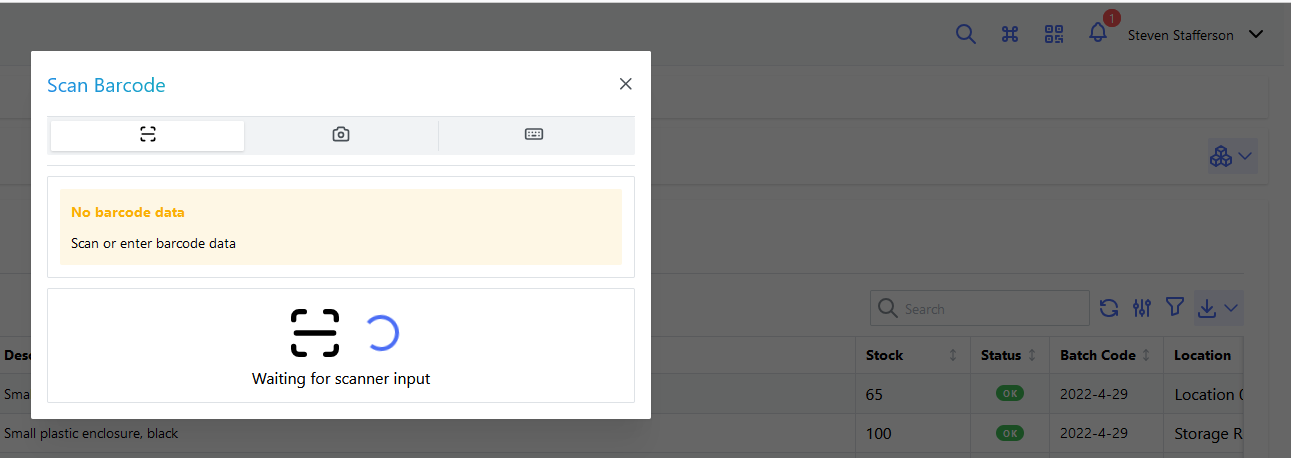
If barcode scanning is enabled in the web interface, select the barcode icon in the top-right of the menu bar to perform a quick-scan of a barcode. If the barcode is recognized by the system, the web browser will automatically navigate to the correct item:
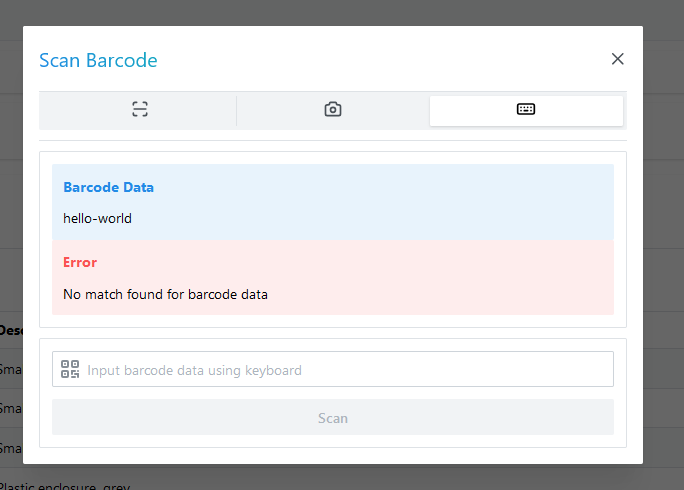
If no match is found for the scanned barcode, the following error message is displayed:
Scanning Action Page
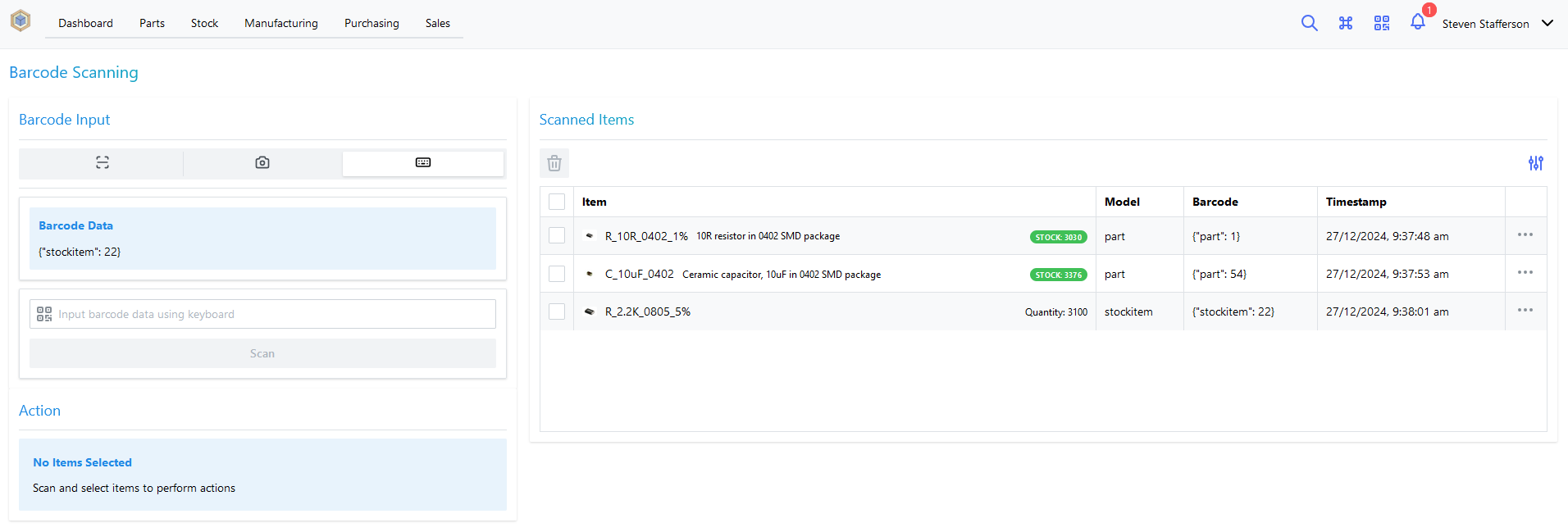
A more comprehensive barcode scanning interface is available via the "Scan" page in the web interface. This page allows the user to scan multiple barcodes, and perform certain actions on the scanned items.
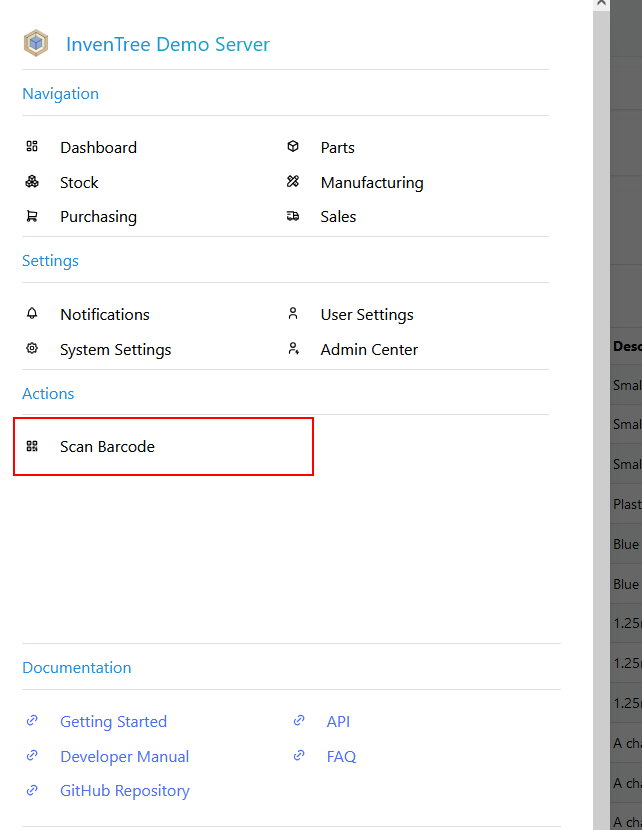
To access this page, select Scan Barcode from the main navigation menu:
Barcodes in Forms
The InvenTree user interface supports direct scanning of barcodes within certain forms in the web UI. This means that any form field which points to a model which supports barcodes can accept barcode input. If barcode scanning is supported for a particular field, a barcode icon will be displayed next to the input field:
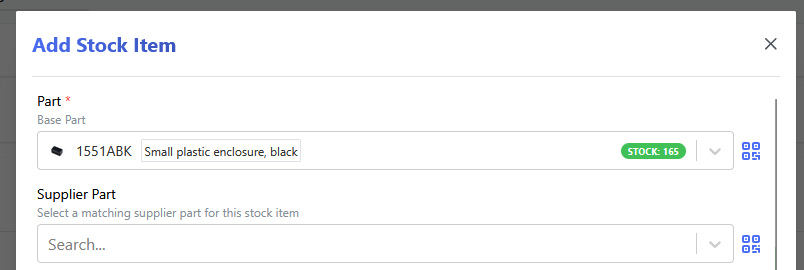
To scan a barcode into a form field, click this barcode icon. A barcode scanning dialog will be displayed, allowing the user to scan a barcode using their preferred input method:
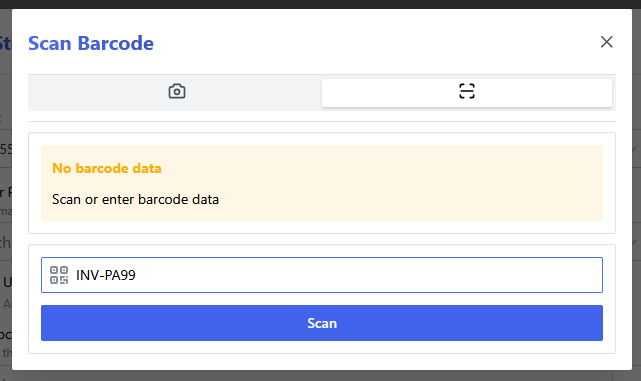
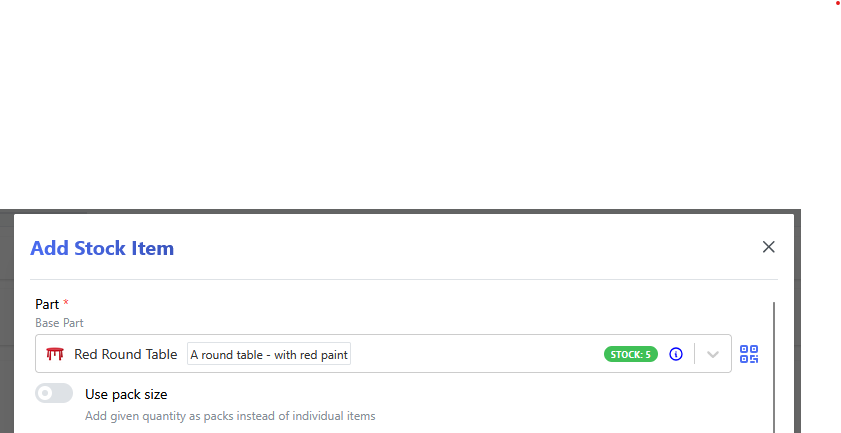
Once scanned, the form field will be automatically populated with the correct item.
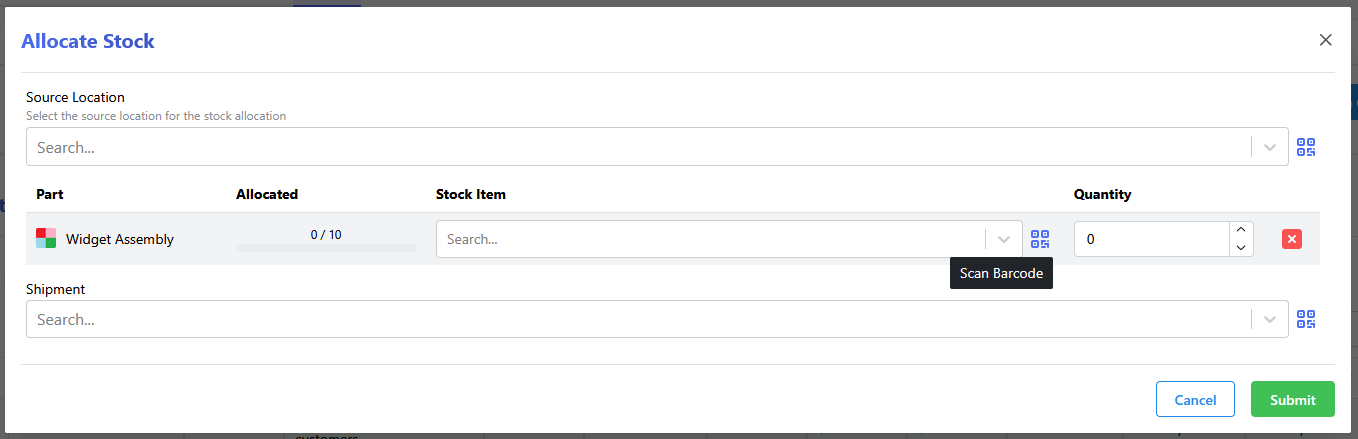
Any field which supports barcode input will have this functionality, such as allocating stock items to an order:
User Configuration
By default, barcode scanning in form fields is disabled. Each user can enable this feature via their user preferences.
App Integration
Barcode scanning is a key feature of the companion mobile app. When running on a device with an integrated camera, the app can scan barcodes directly from the camera feed.
Barcode History
If enabled, InvenTree can retain logs of the most recent barcode scans. This can be very useful for debugging or auditing purposes.
Refer to the barcode settings to enable barcode history logging.
The barcode history can be viewed via the admin panel in the web interface.
Barcode Settings
There are a number of settings which control the behavior of barcodes within InvenTree. For more information, refer to the links below: