Stock
Stock Location View
From the home screen, select Stock to open the top-level stock location view.
Details Tab
The Details tab shows information about the selected stock location.
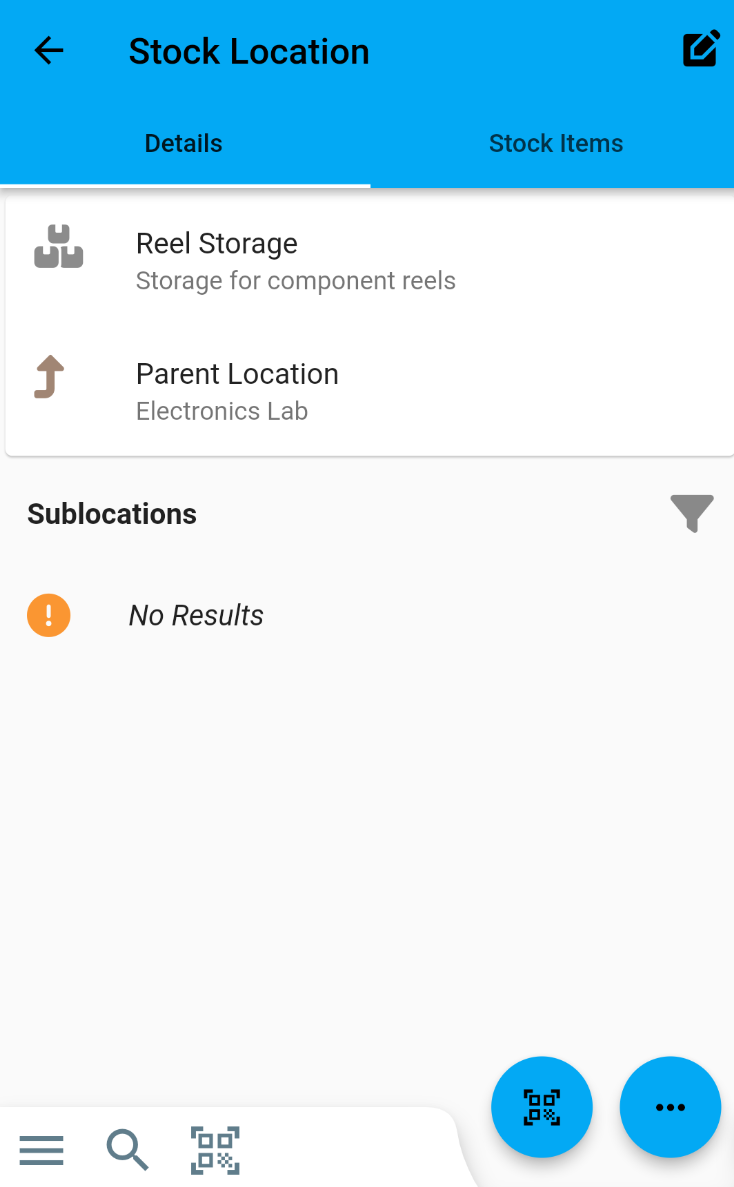
Parent Location
If the current location has a parent location (i.e. it is not a top-level location) then a link is provided to the parent location. Tap the parent location tile to navigate to the location detail page for the parent location.
Sublocations
If the current stock location has any sublocations, they are listed here. Select any of the displayed sublocations to navigate to the detail view.
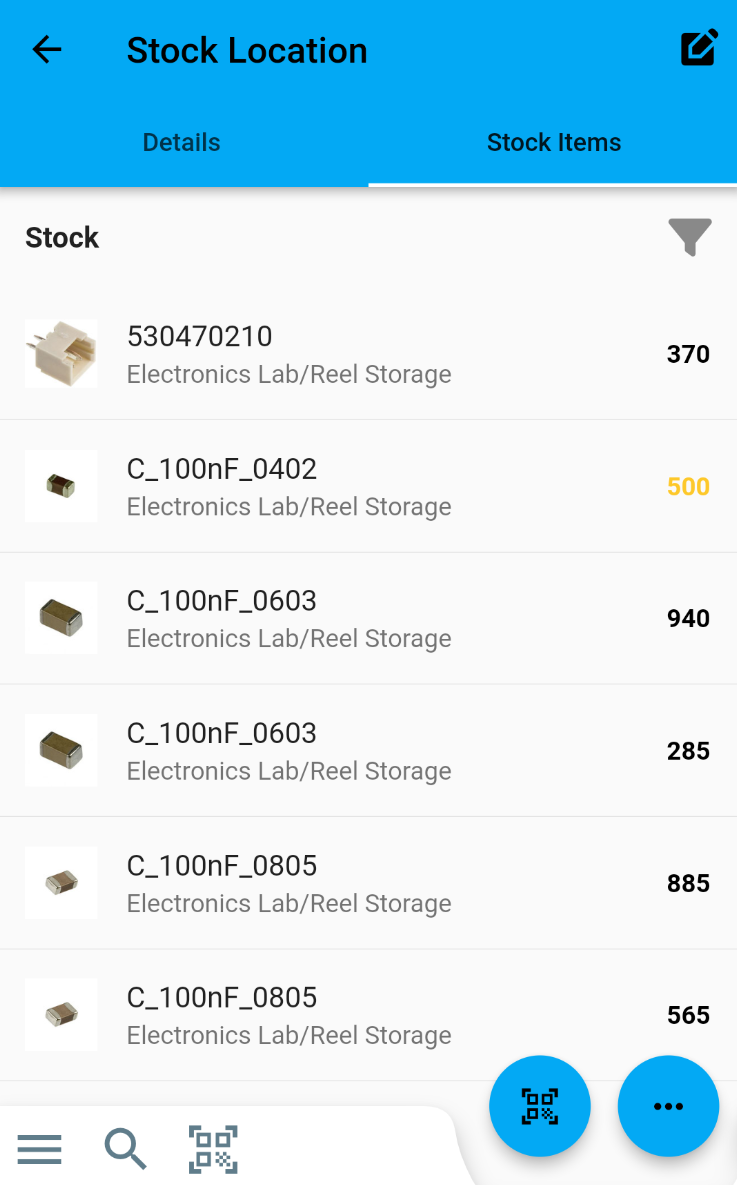
Stock Tab
The Stock tab displays all the stock items available in this location. Tap a displayed stock item to navigate to the stock item detail view.
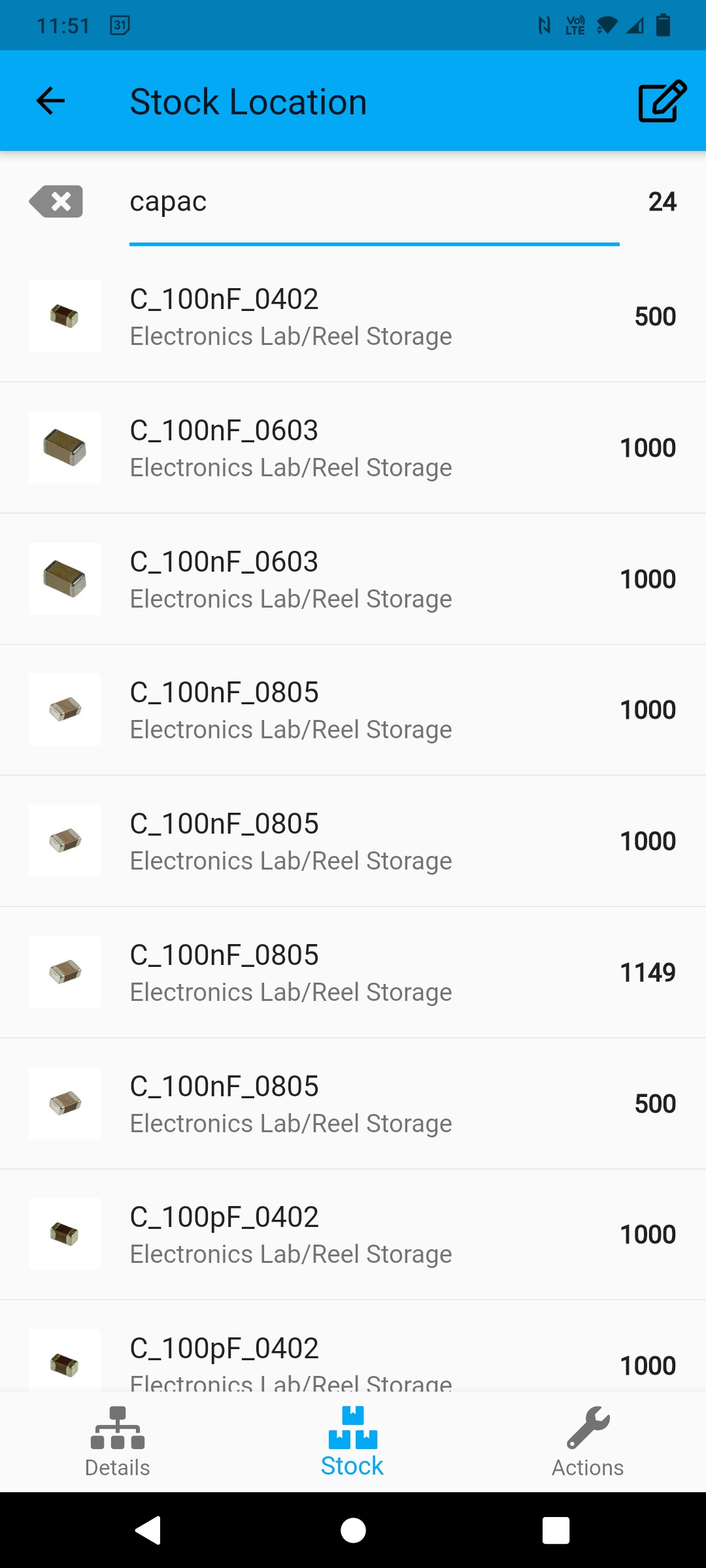
The list of available stock items can be filtered using the input box at the top of the screen:
Context Actions
The following Context Actions are available for the selected location:
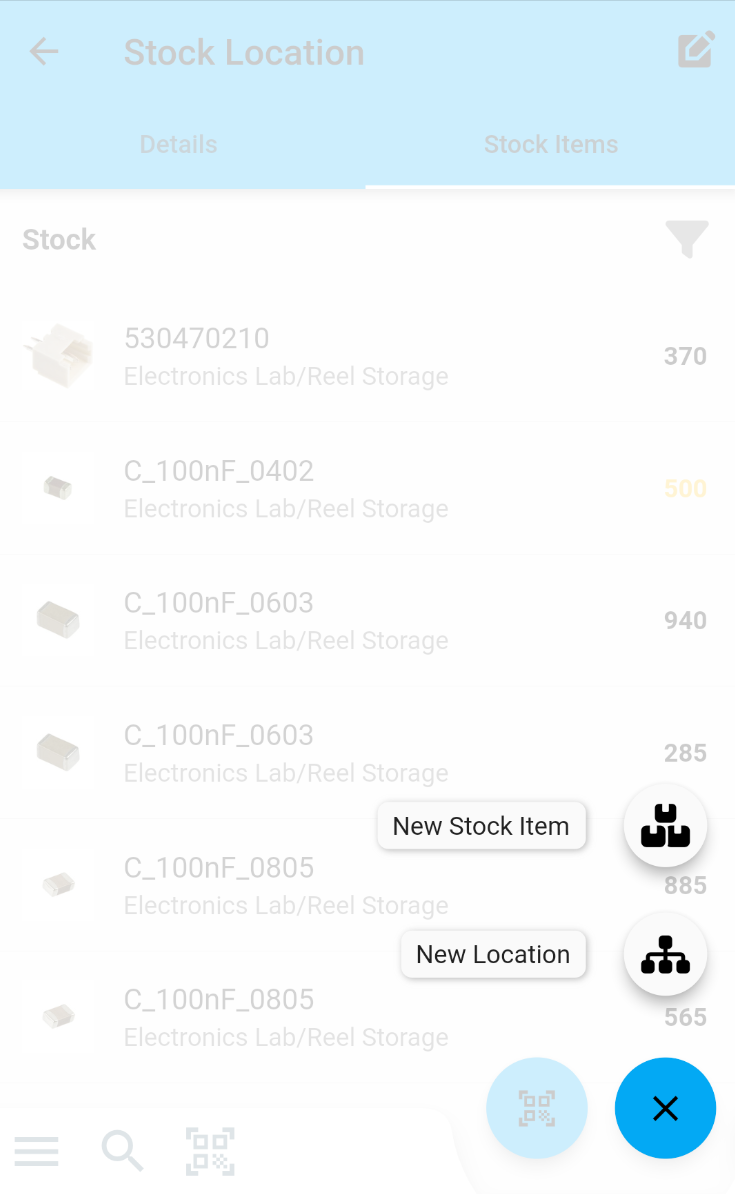
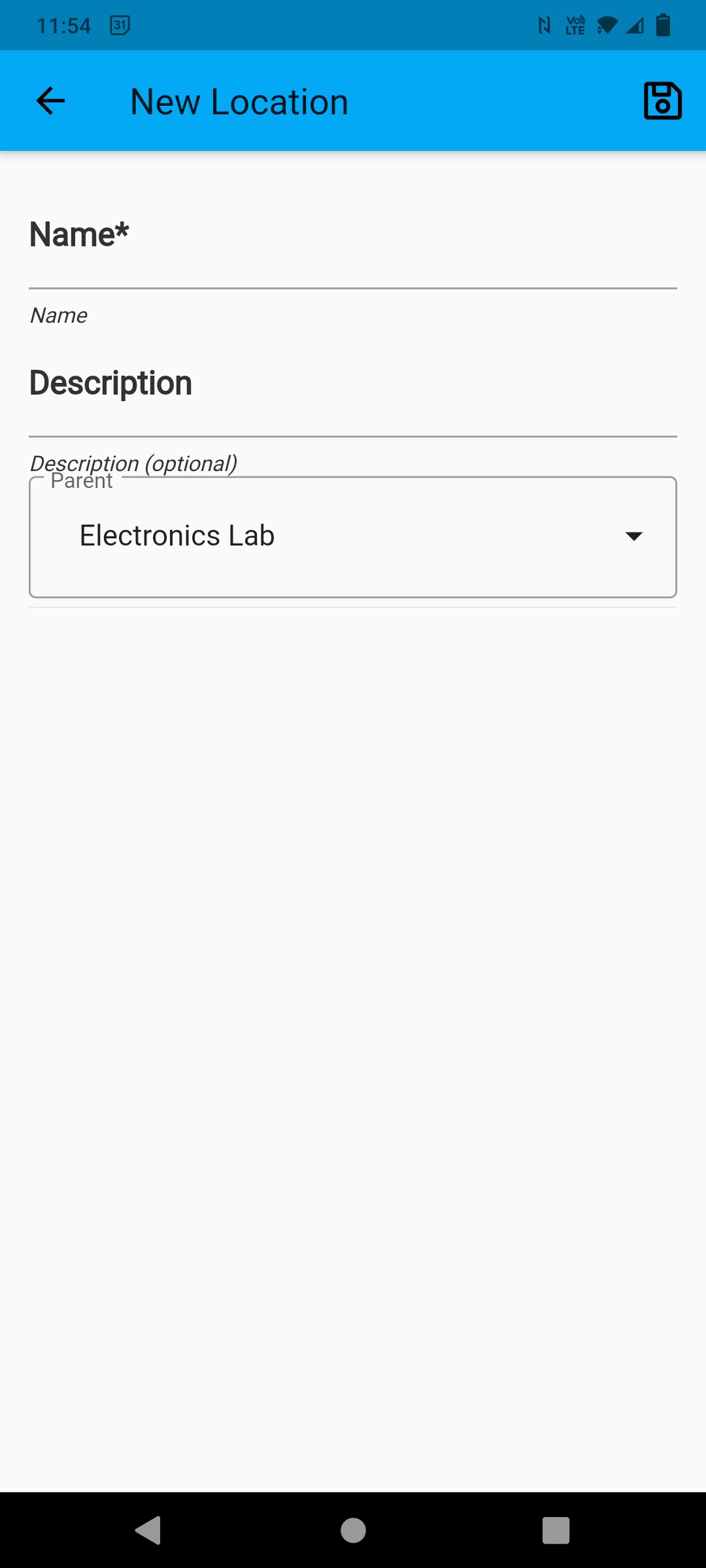
New Location
Create a new location under the current location:
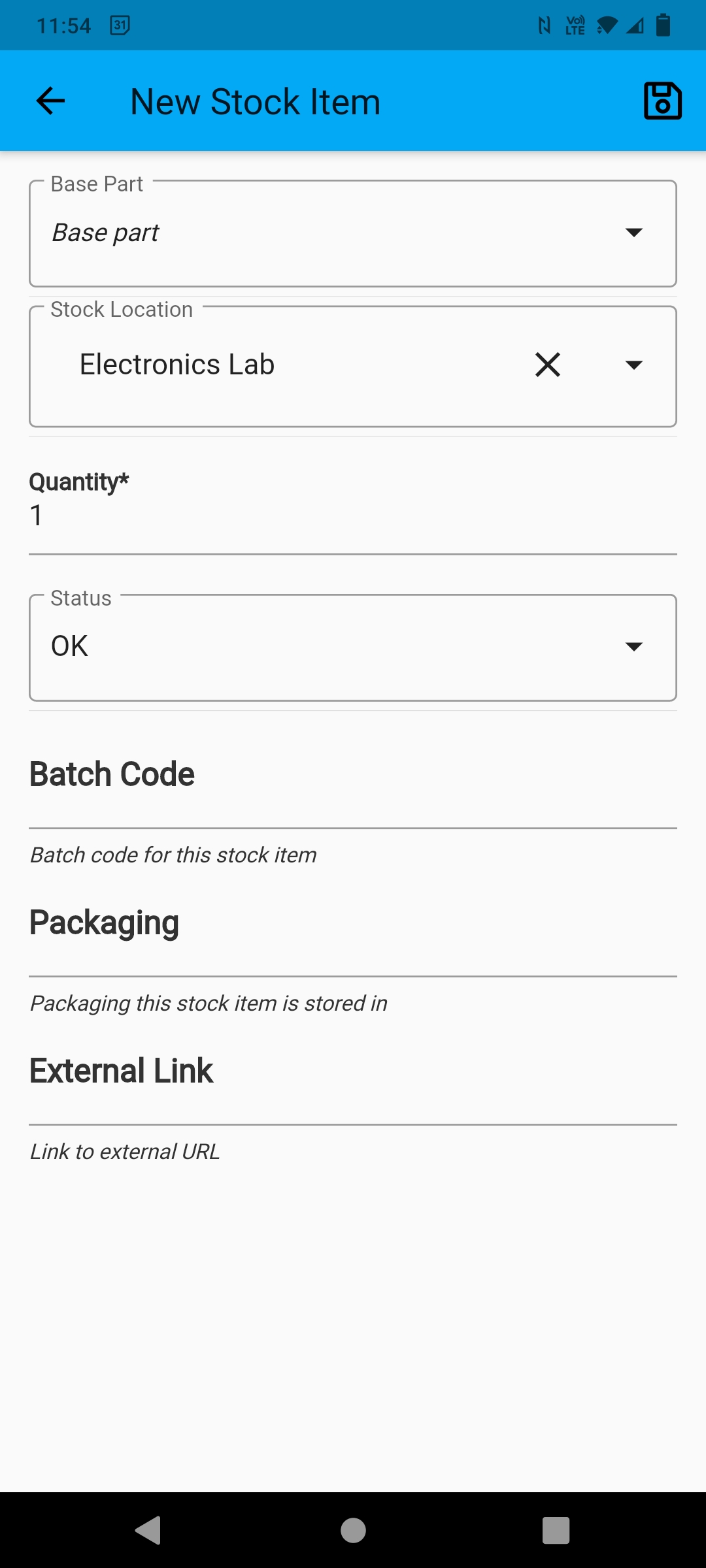
New Stock Item
Create a new stock item in the current location:
Scan Stock Items Into Location
Use the barcode scanner to scan a stock item into the current location.
Stock Item Detail View
The Stock Item Detail view displays information about a single stock item:
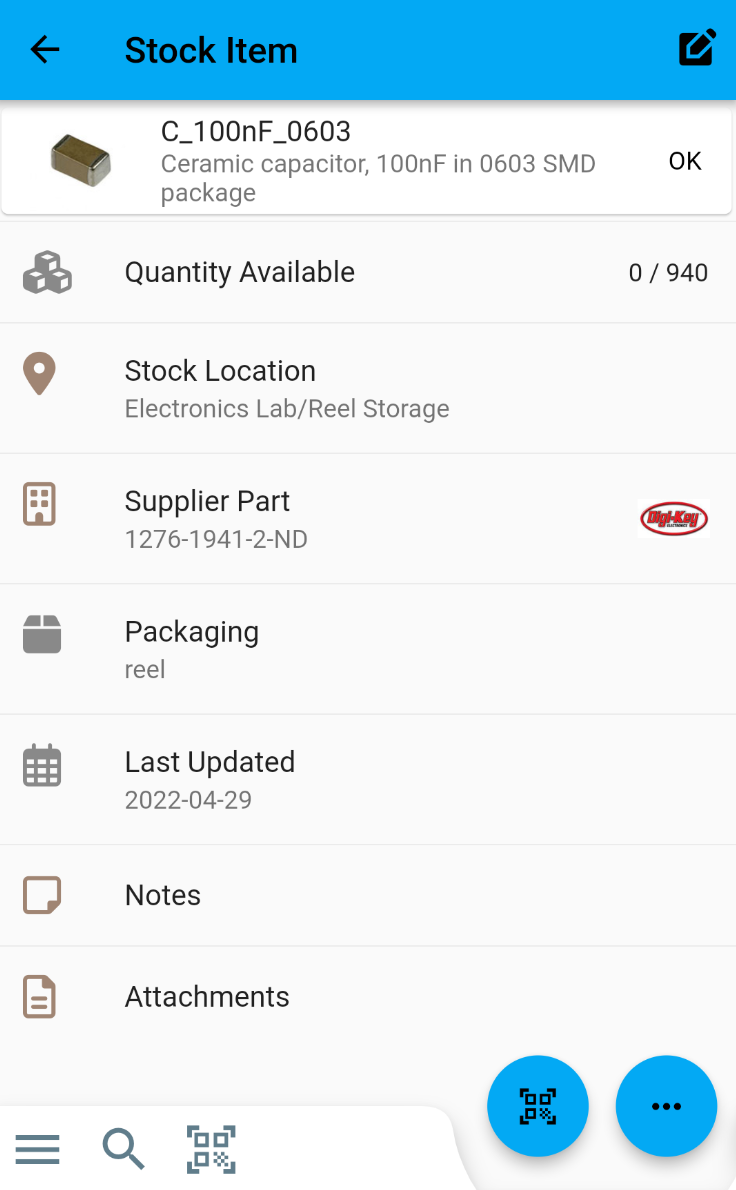
Details Tab
The details tab shows information about the selected stock item. Some of the displayed tiles provide further information when selected:
Part Tile
Part information is displayed at the top of the screen. Tap on this tile to navigate to the detail view for the linked part
Location
Tap on the location tile to navigate to the location detail view
Notes
Tap on the notes tile to display and edit the notes for this stock item
Actions Tab
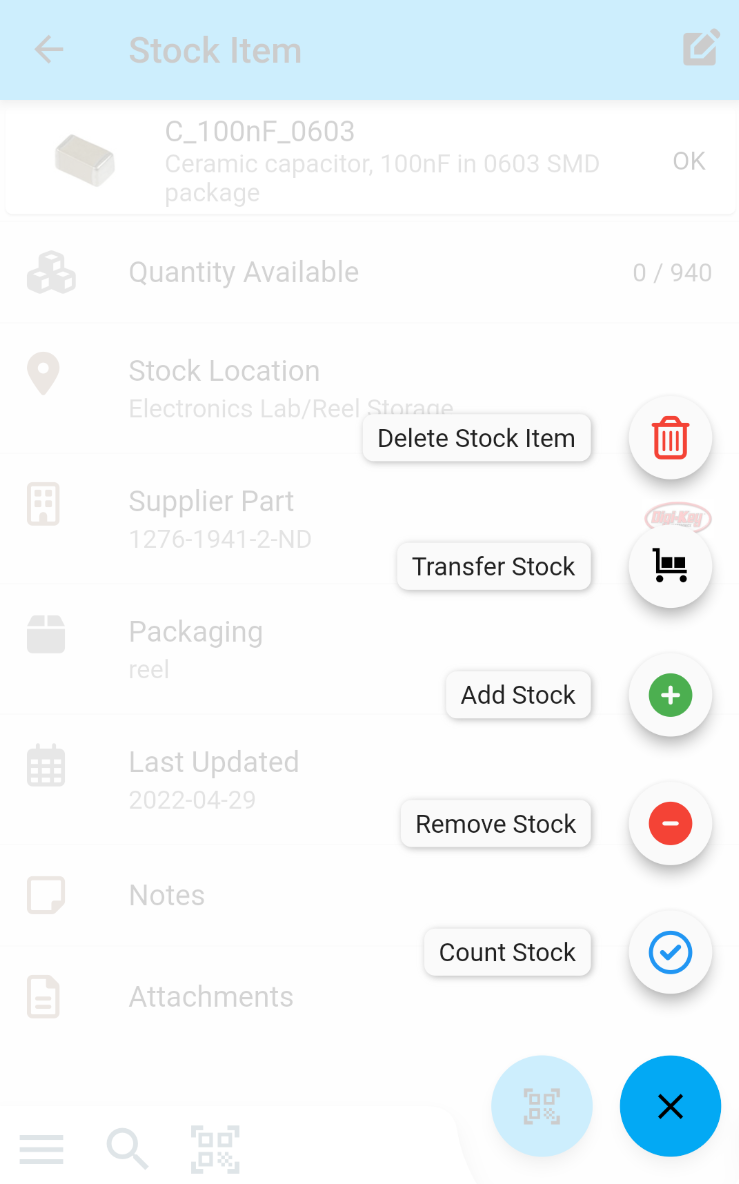
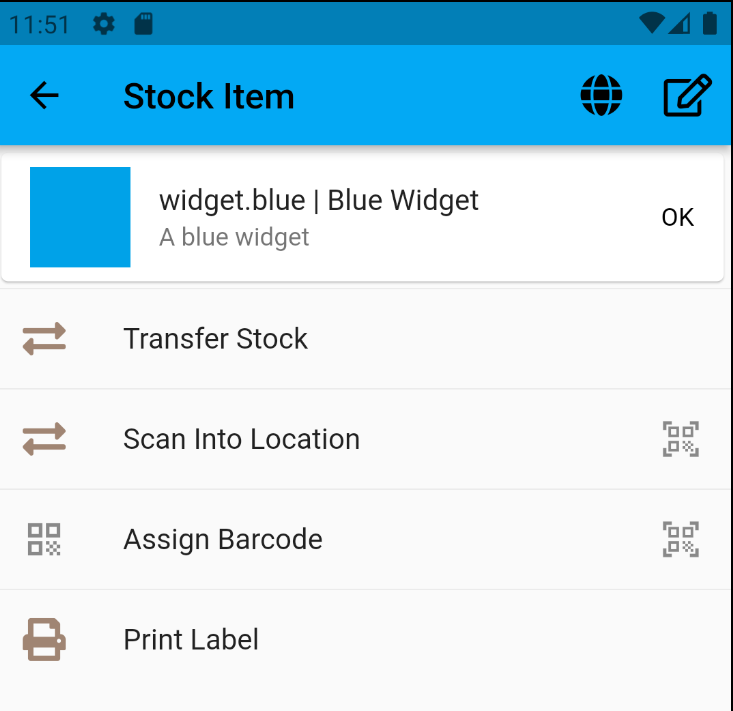
The actions tab displays the available actions for the selected stock item:
Count Stock
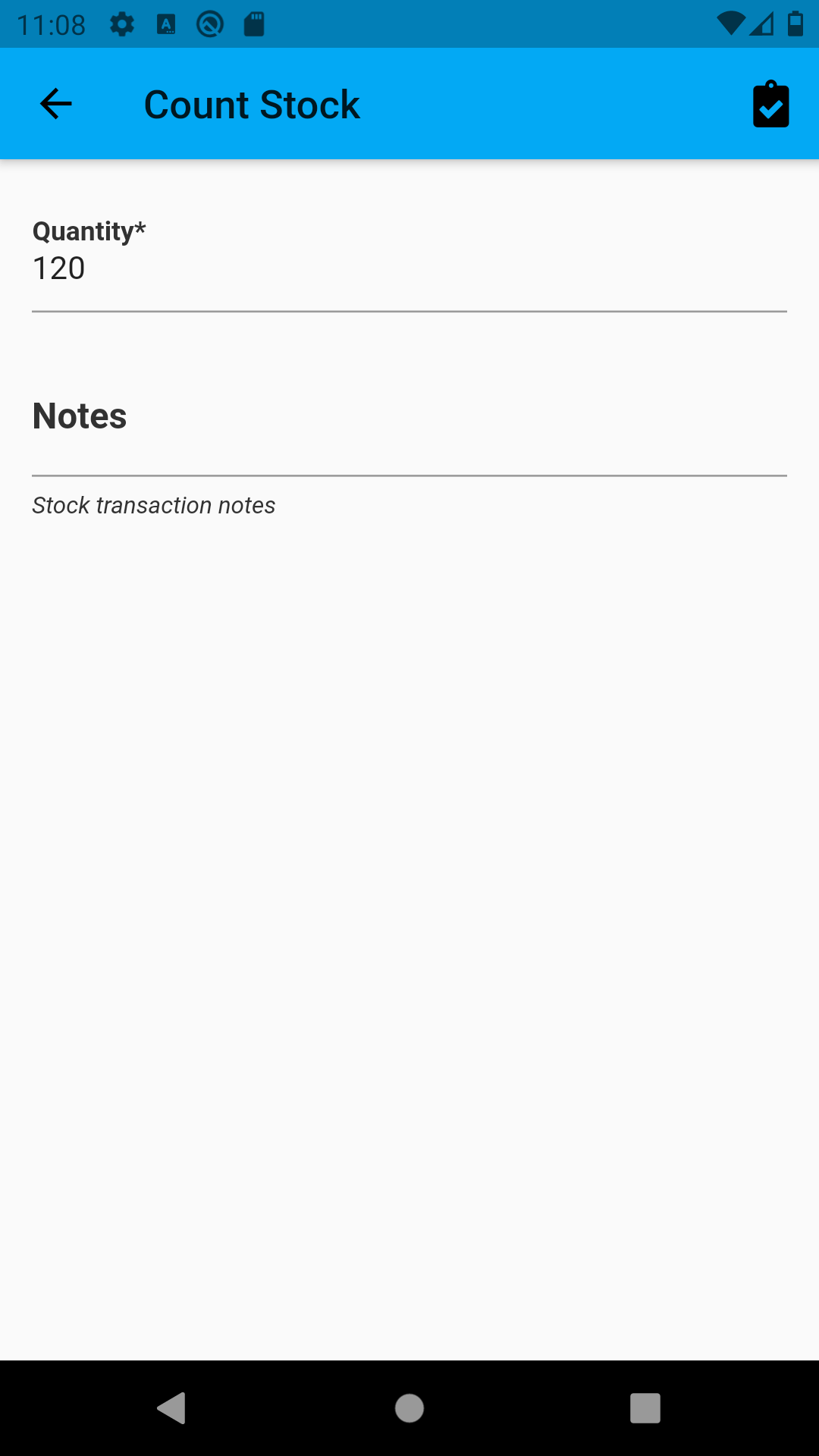
Select the Count Stock action to validate the current number of items in stock. Use this option to perform a quick stocktake!
Serialized Stock
The count stock action is not available for serialized stock items, as they have a fixed quantity of 1
Remove Stock
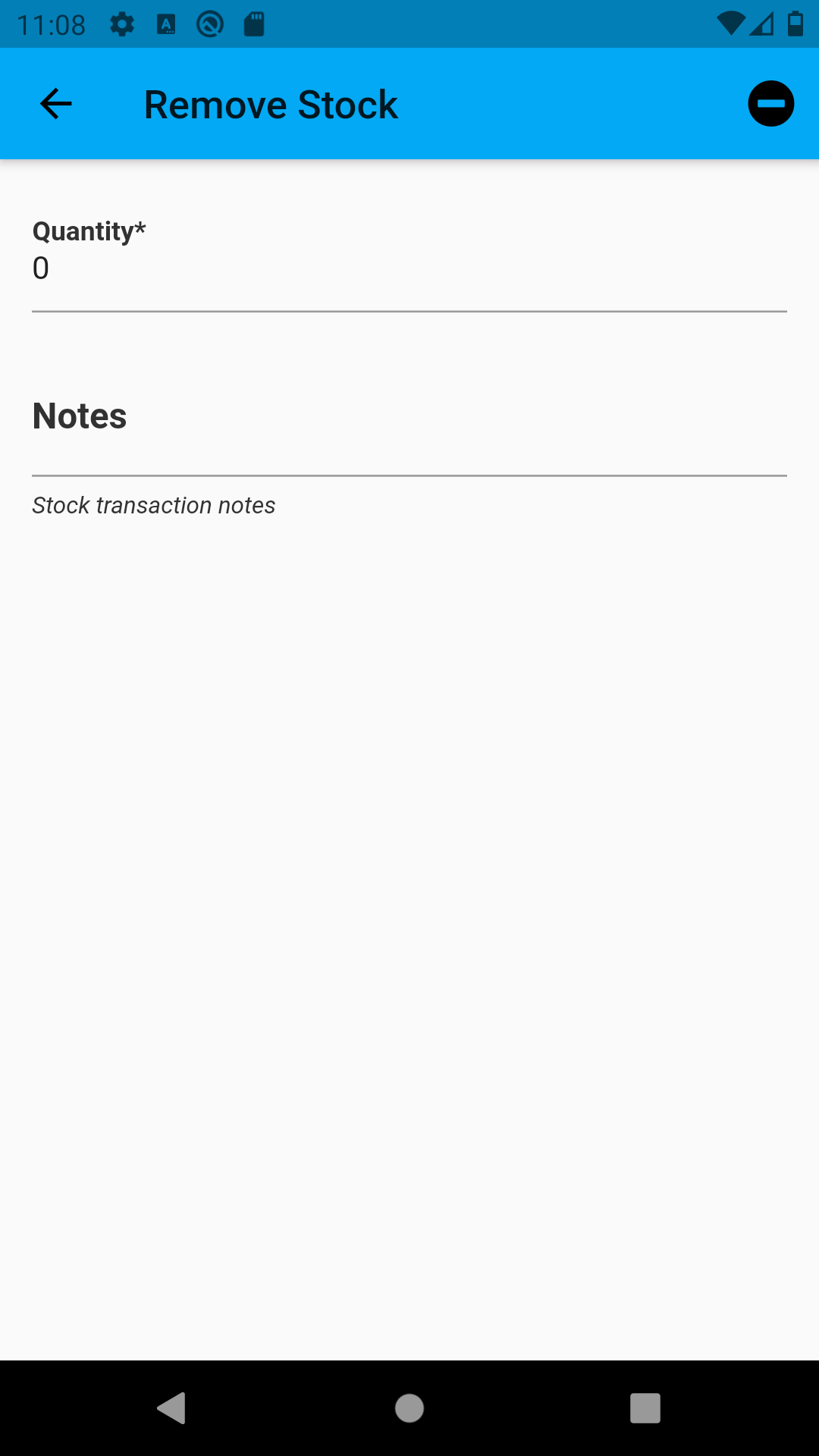
Select this action to remove a certain quantity from the selected stock item. For example, if there are 12 items available, and you take 3 items, the listed quantity will be reduced to 9 items.
Add Stock
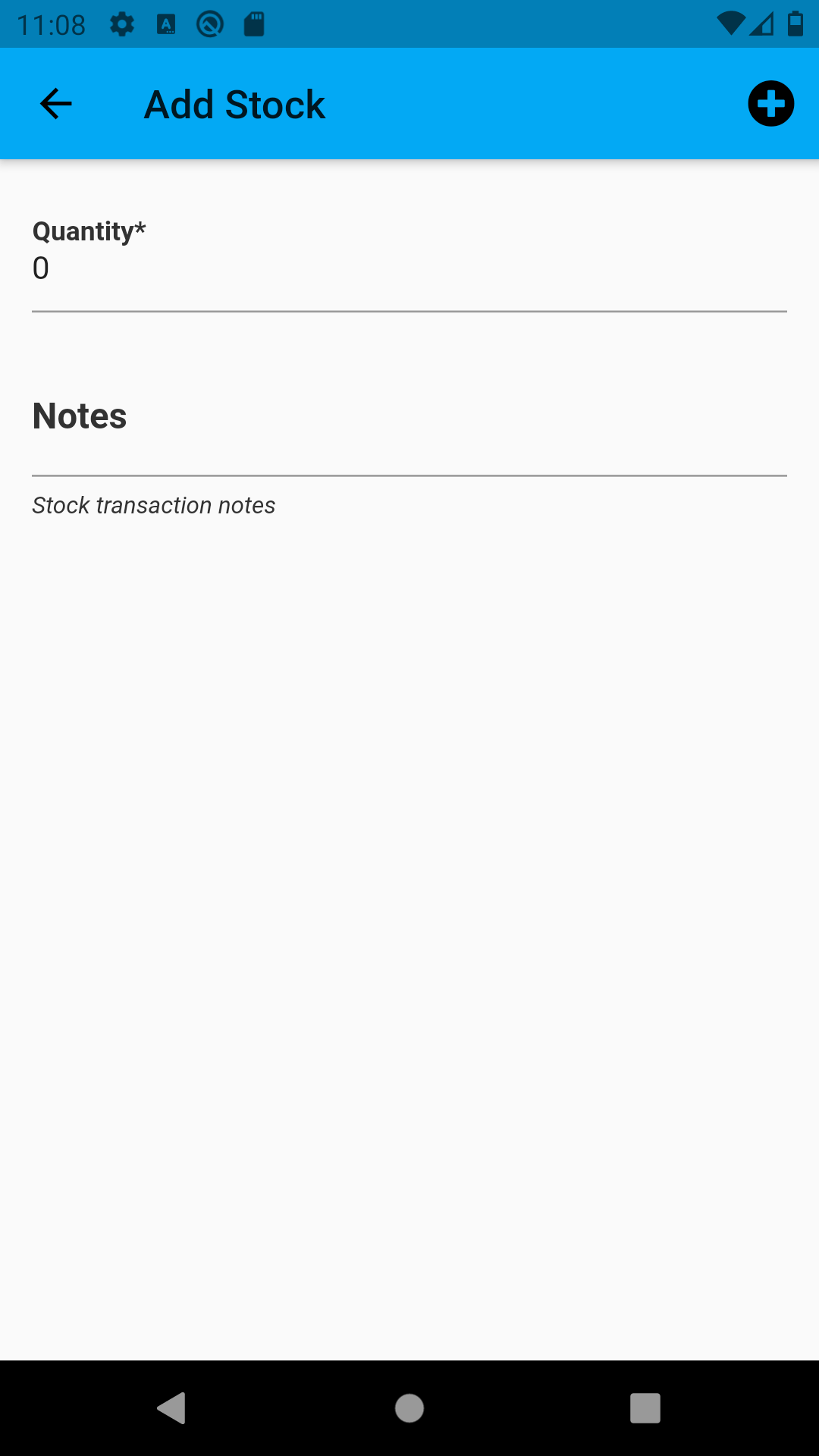
Select this action to add a certain quantity to the selected stock item. For example, if there are 12 items available, and you add 3 items, the listed quantity will be increased to 15 items.
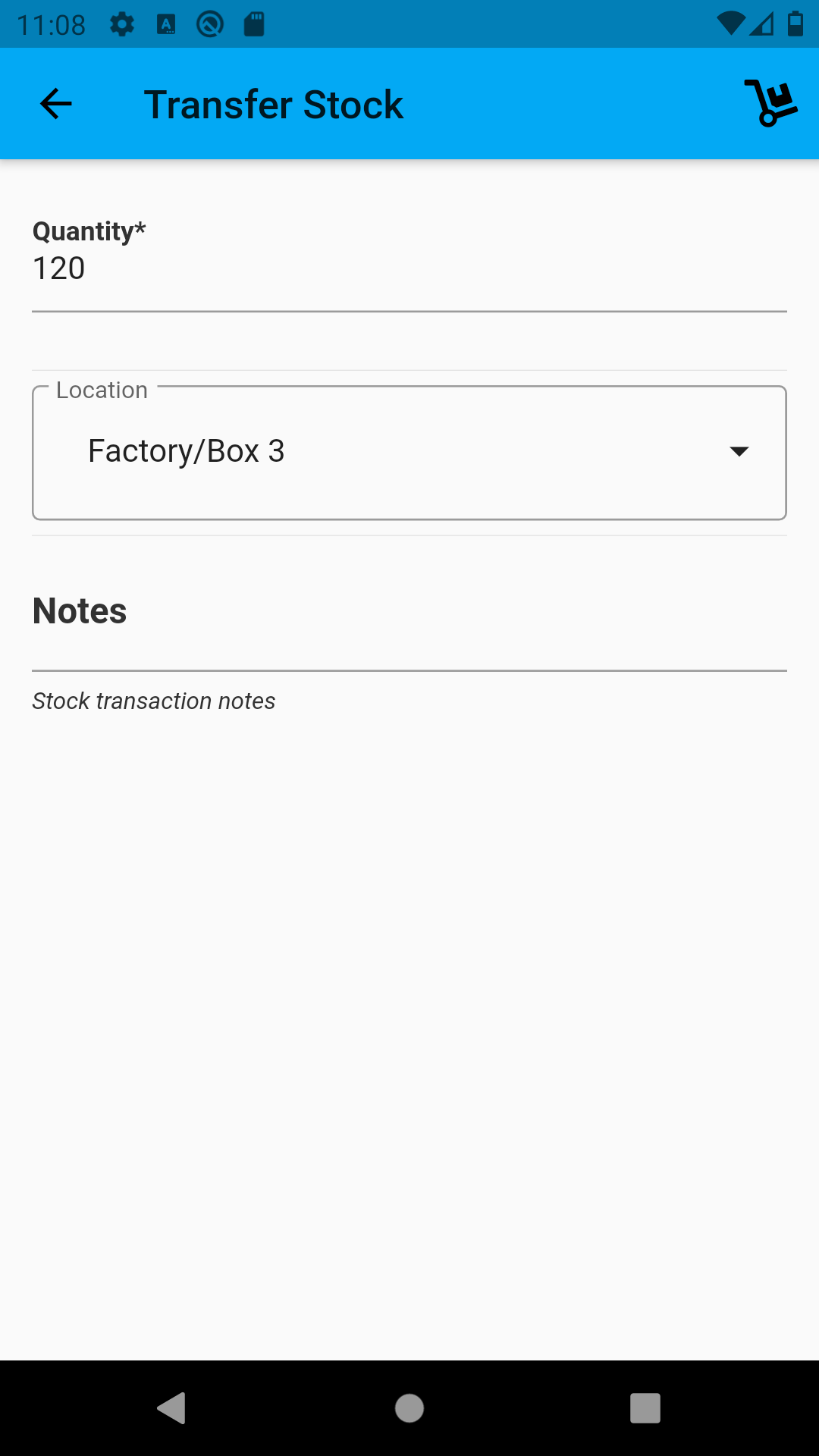
Transfer Stock
Transfer (move) the stock item to a new location:
Scan Into Location
Transfer the stock item into a new location by scanning the barcode for that location. If a valid stock location barcode is scanned, the stock item will be automatically relocated to that location
Assign Barcode
If a stock item has a third-party barcode (i.e. it has been received from a supplier with a barcode already printed) then this barcode can be used to track the stock item in InvenTree.
Select the assign barcode action to scan this third-party barcode and assign it to this stock item.
This barcode can then be used to track the stock item.
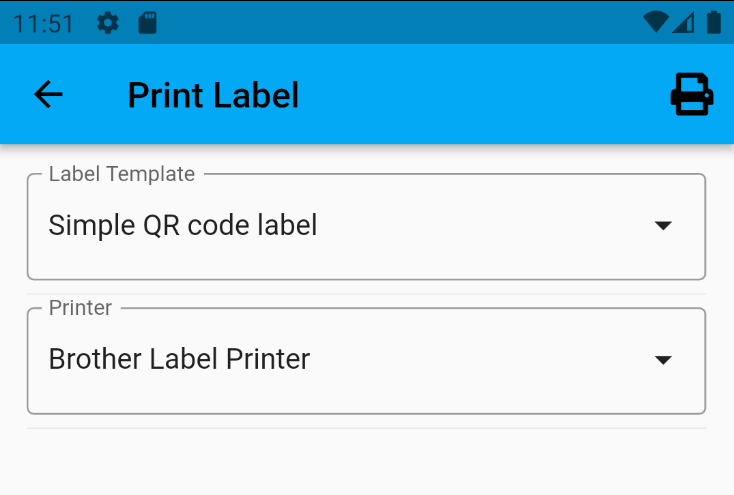
Print Label
If the server supports label printing plugins, then an option to print a label for the selected stock item:
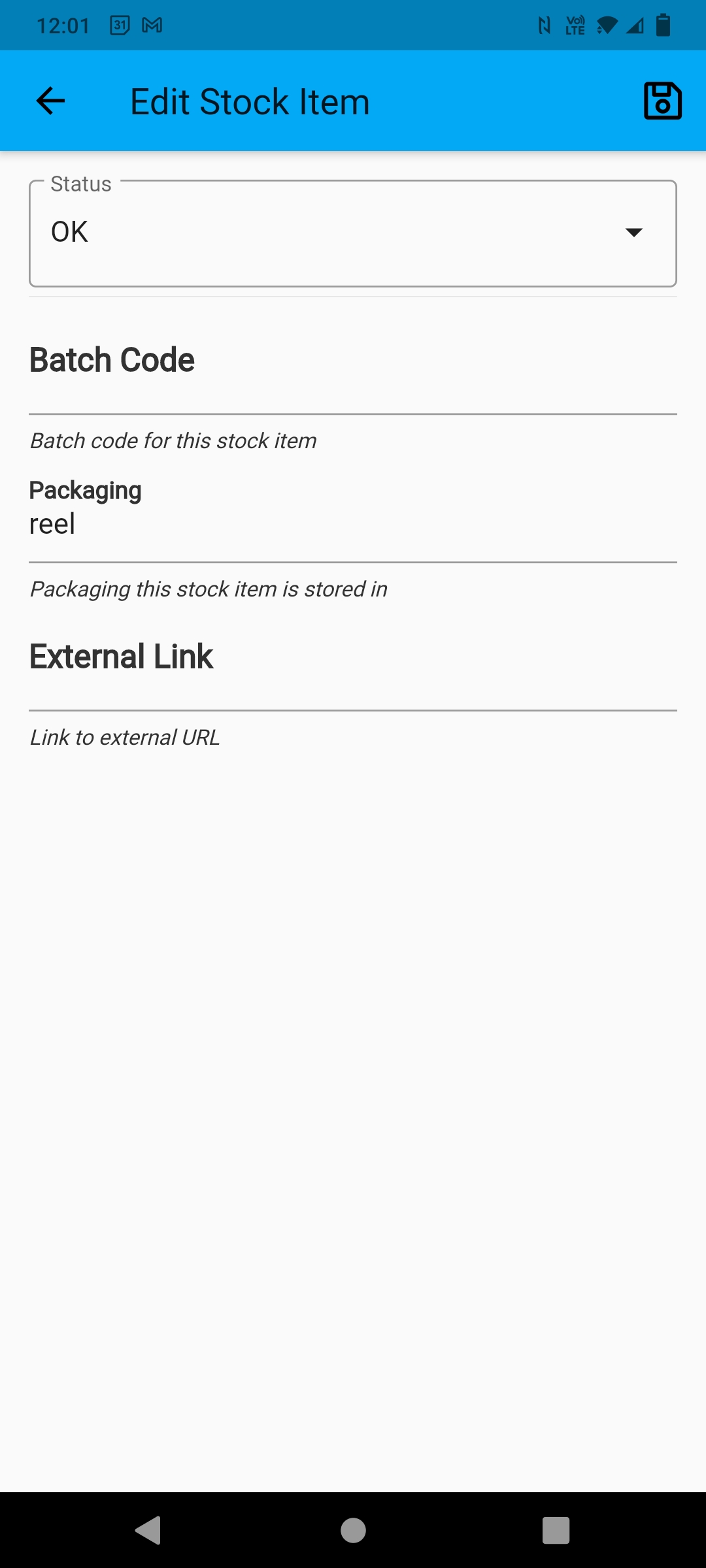
Edit Stock Item
To edit the stock item details, select the Edit button in the top right corner of the screen: