Navigation
Home Screen
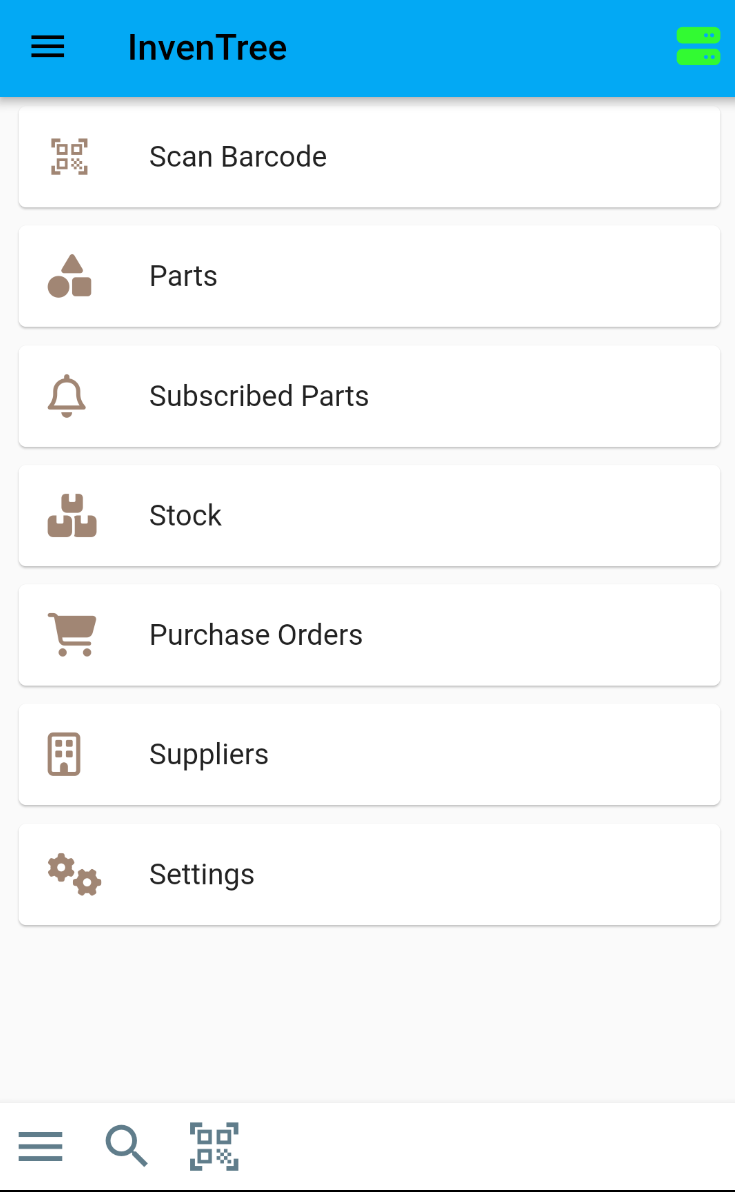
The app home screen provides quick-access buttons for stock view and actions:
Tab Display
Some screens provide multiple tabbed views, which are displayed at the top of the screen:
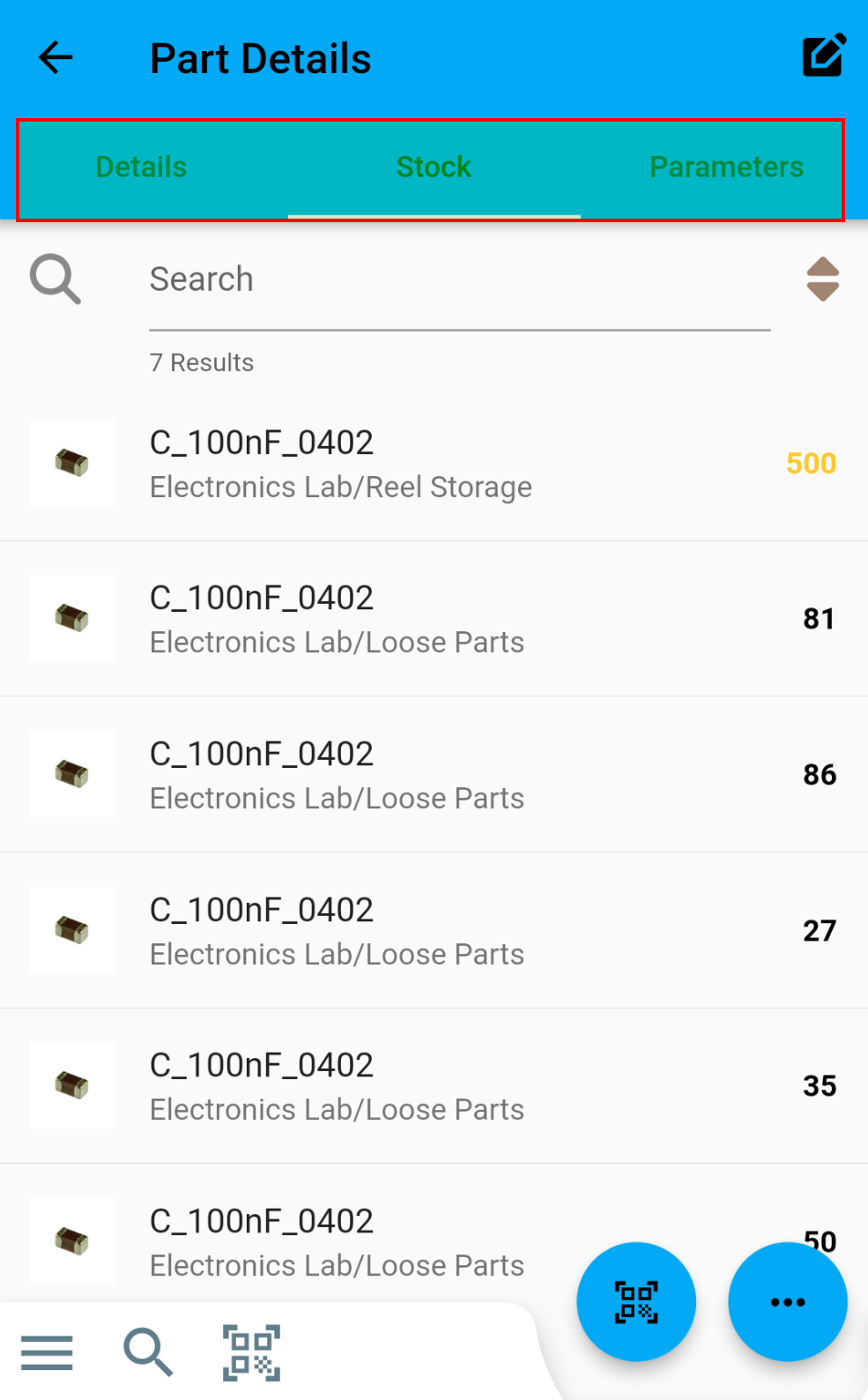
Tabs can be navigated by pressing on the text of each tab, or by scrolling the screen left or right.
Global Actions
The Global Action buttons are visible on most screens, displayed in the bottom left corner of the screen:
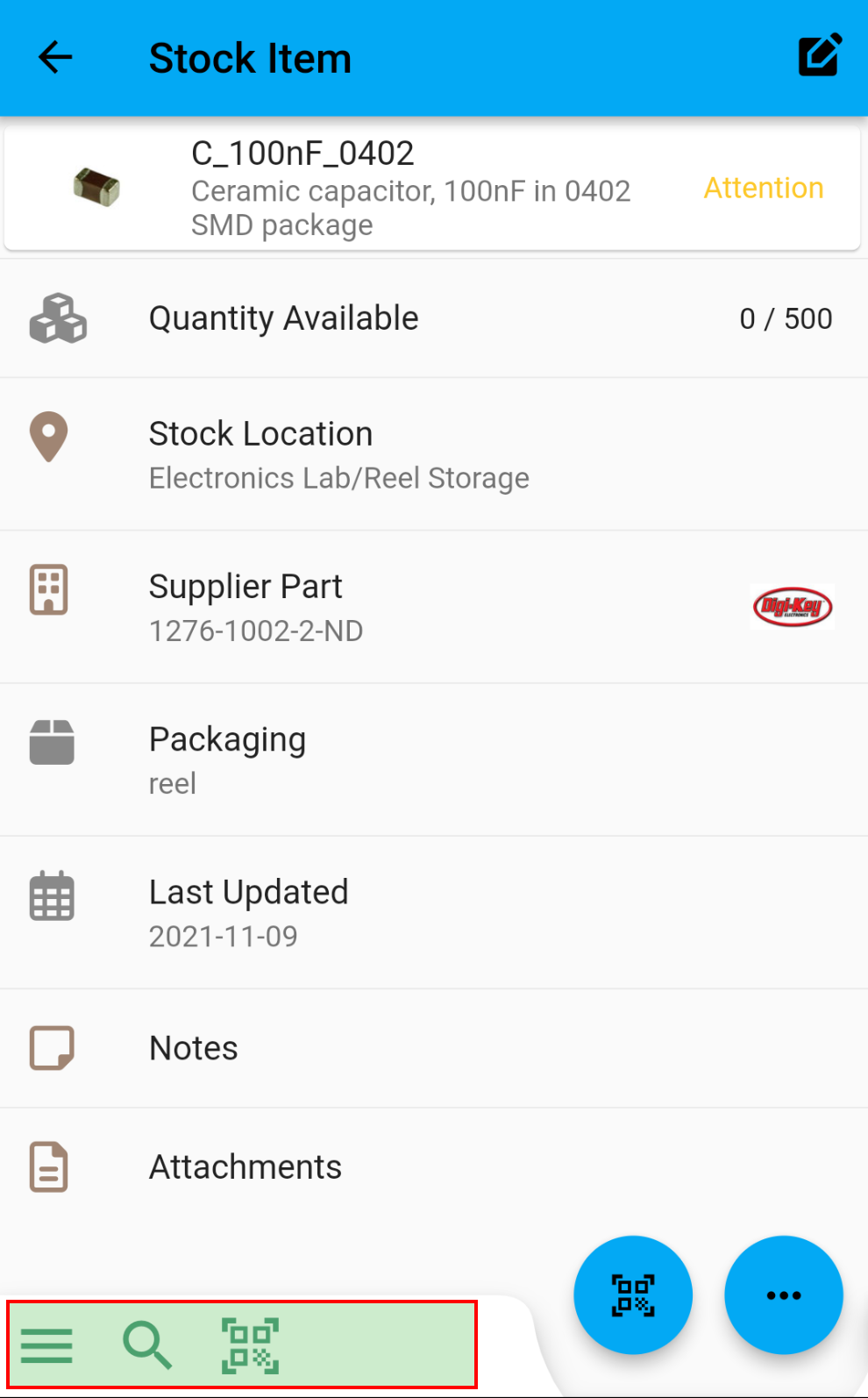
Open Drawer Menu
The action opens the Drawer Menu, which is a quick-access menu for global navigation:
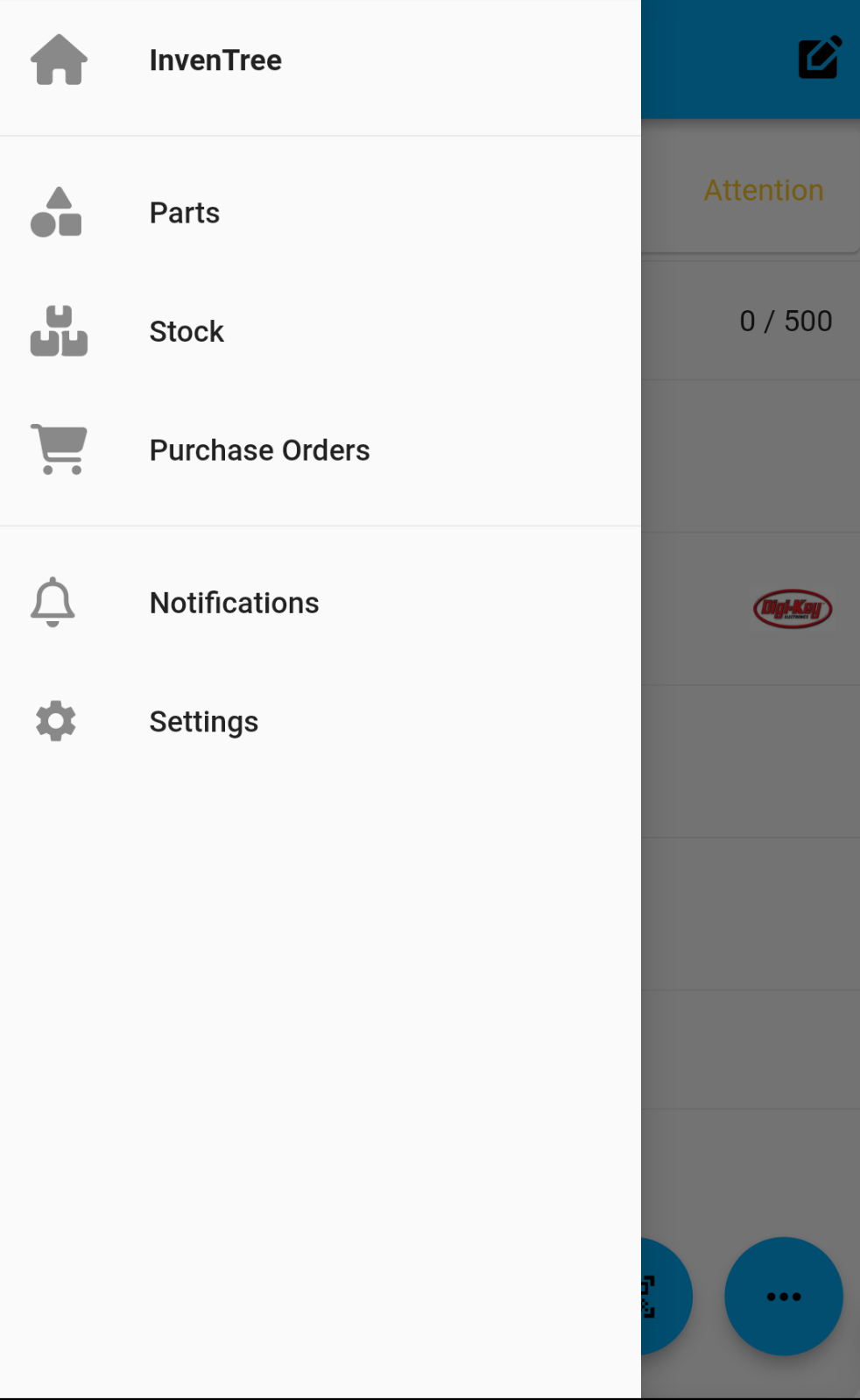
The Drawer Menu can be accessed in the following ways:
- From the Home Screen select the Drawer icon in the top-left corner of the screen
- From any other screen, long-press the Back button in the top-left corner of the screen
Search
The Search action opens the Search screen
Scan Barcode
The Scan action opens the barcode scan window, which allows quick access to the barcode scanning functionality.
Context Actions
Within a given view, certain context actions may be available. If there are contextual actions which can be performed, they are displayed in the bottom right corner:
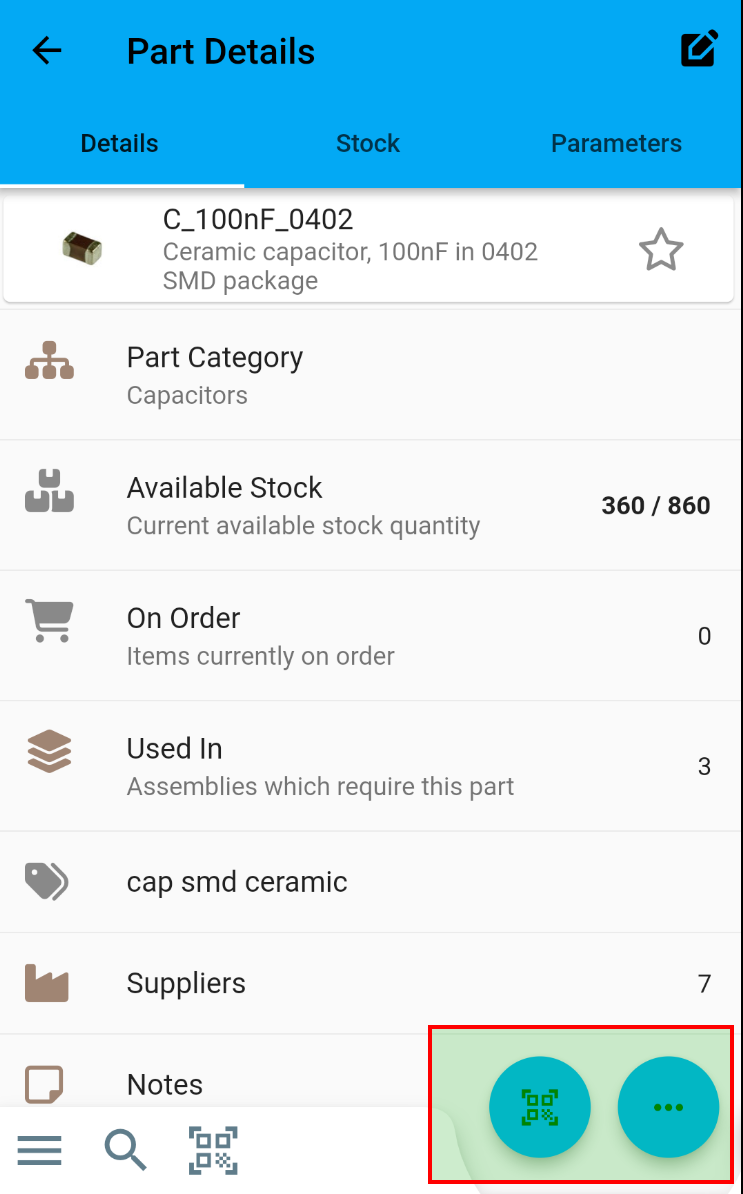
Barcode Actions
Available barcode actions are displayed in a separate context action menu