Connect
Connect to InvenTree
Use of the InvenTree app assumes that you (the user) have access to an InvenTree server.
When first running the app, no profile has been configured. The server icon in the top-right corner of the home screen is red, indicating that there is no connection to an InvenTree server:
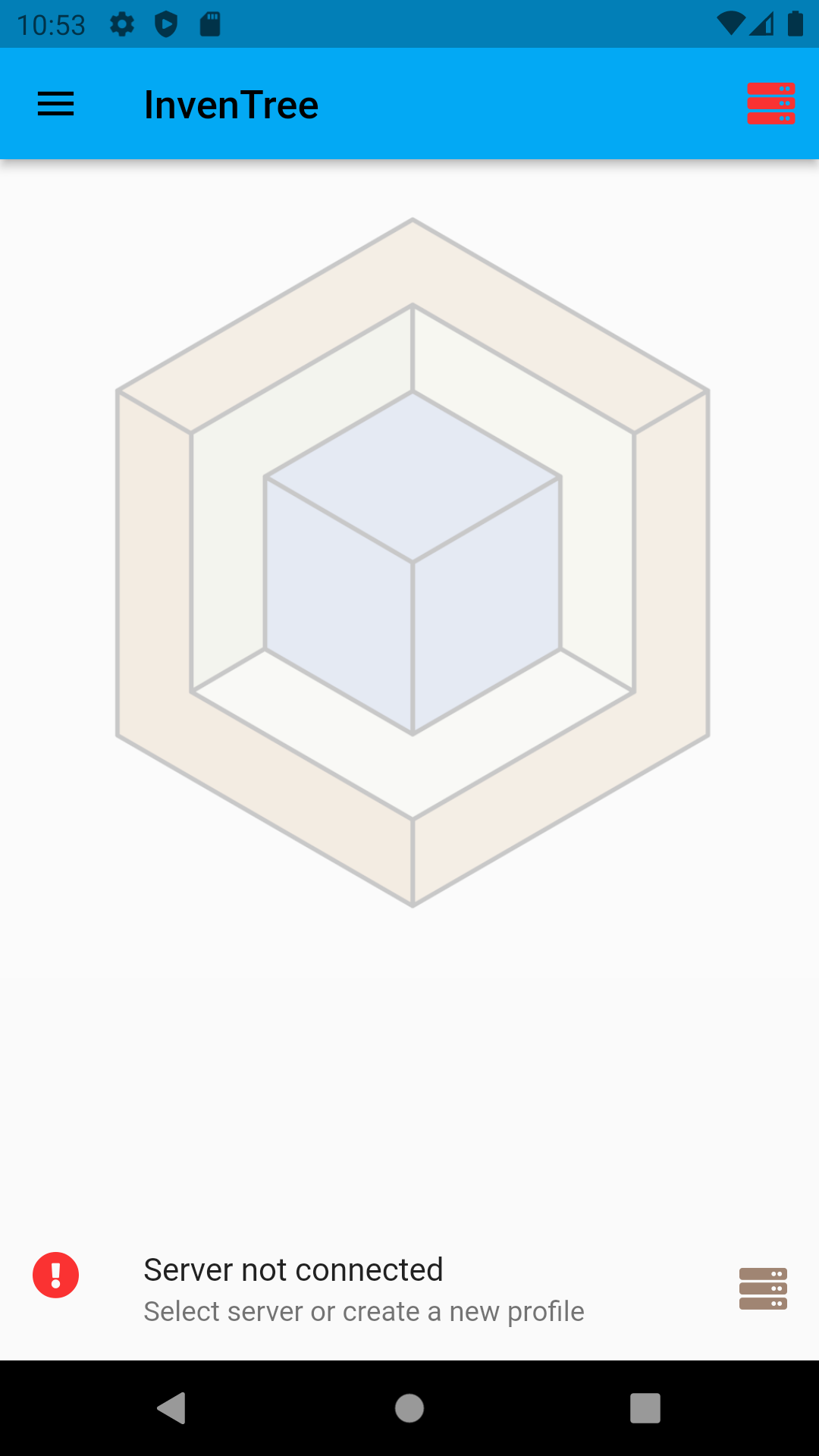
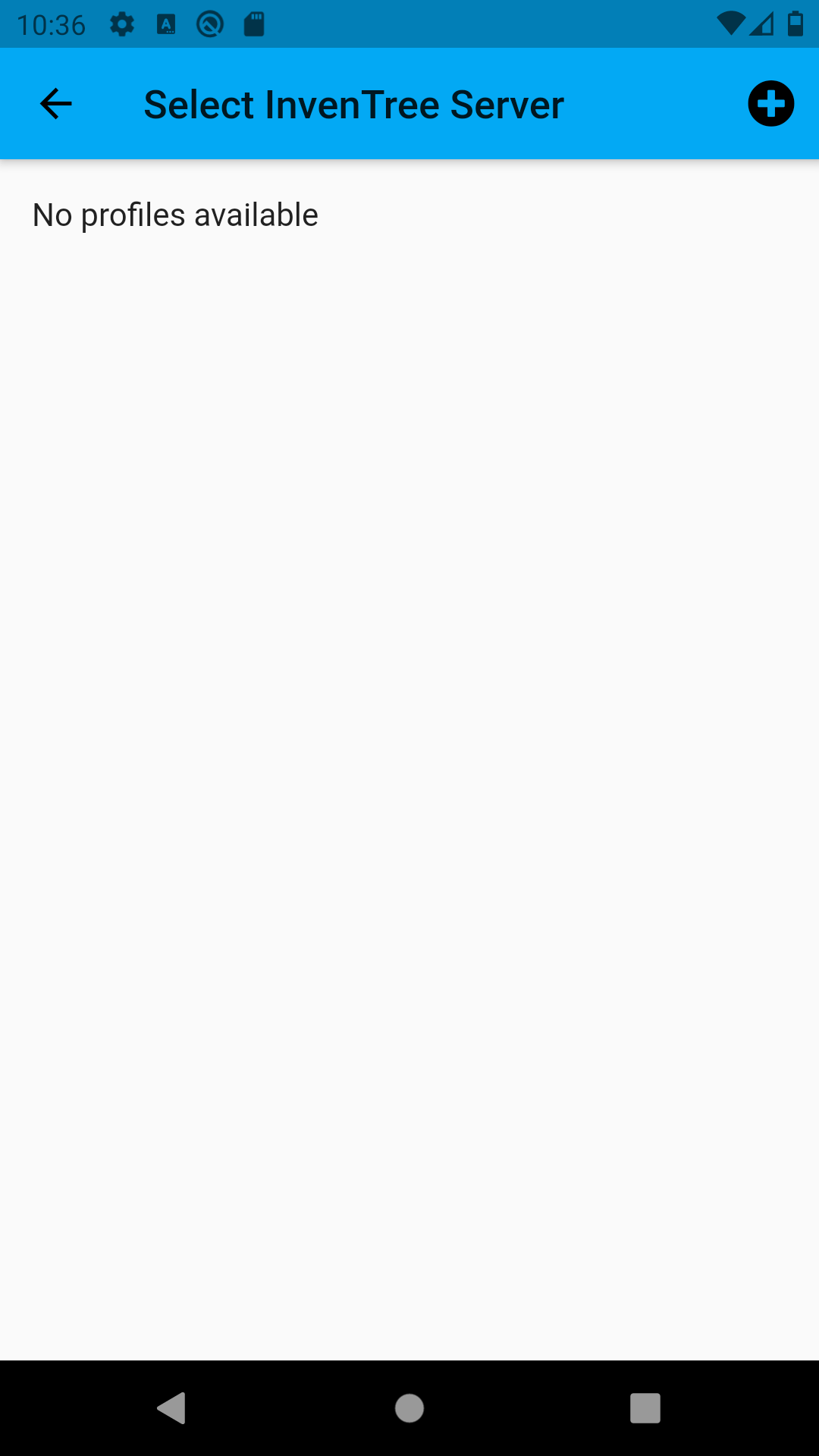
Press on the server icon to navigate to the server selection view:
Create Server
Server Profiles
The app supports multiple server profiles, providing simple switching between different InvenTree servers and/or account profiles.
Press the button in the bottom-right corner of the screen to create a new server profile.
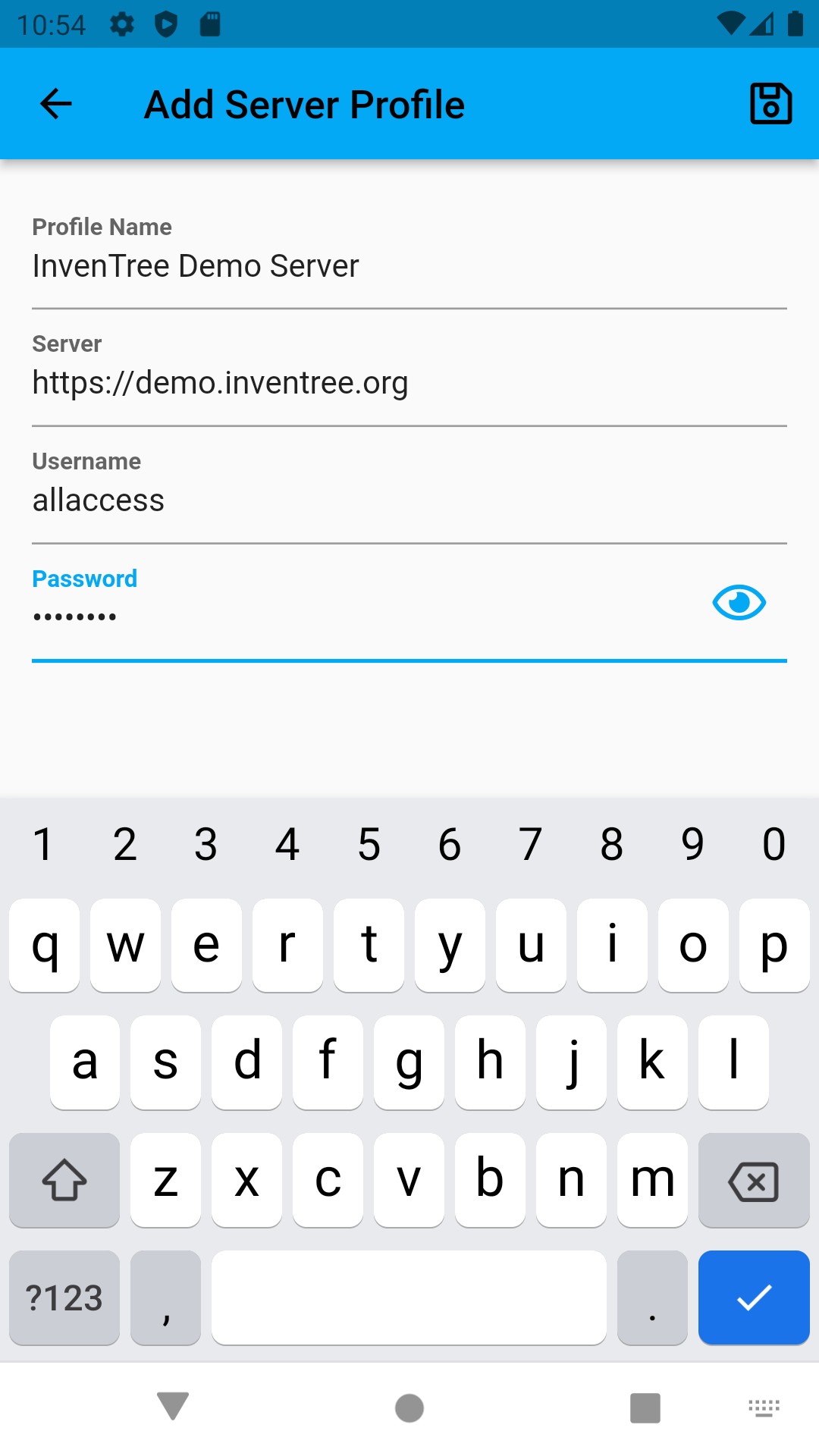
Enter the required server details:
| Parameter | Description |
|---|---|
| Name | Name for the server profile (can be any value, simply for reference) |
| Server | InvenTree server address (including port, if required). e.g. http://inventree.myserver.com:8080 |
| Username | Your account username (case sensitive) |
| Password | Your account password (case sensitive) |
Connect to Server
Once the server profile is created, you need to connect to the server. Simply short press on the server profile to connect.
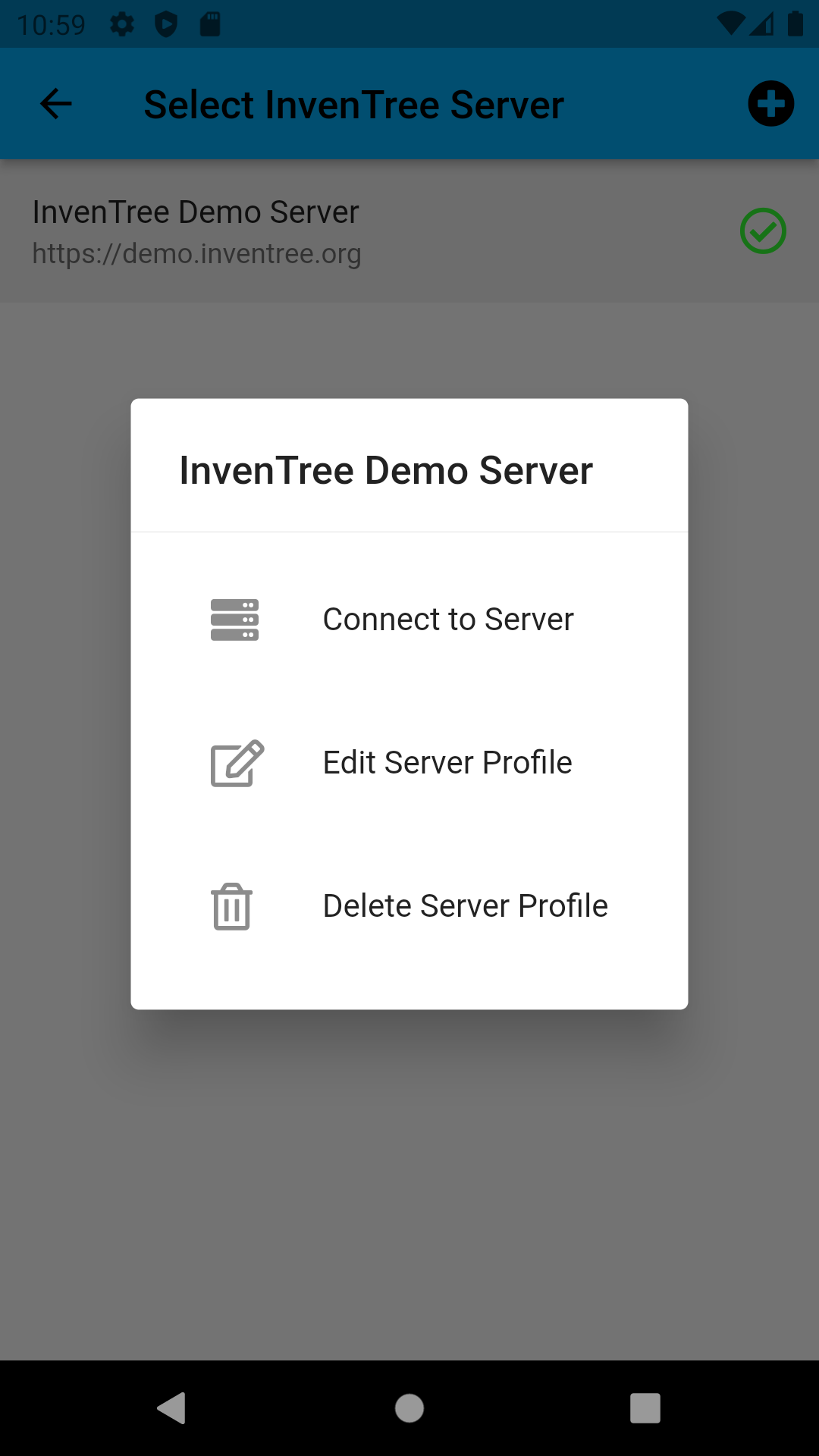
Alternatively, long press on the server profile to activate the context menu, then select Connect to Server.
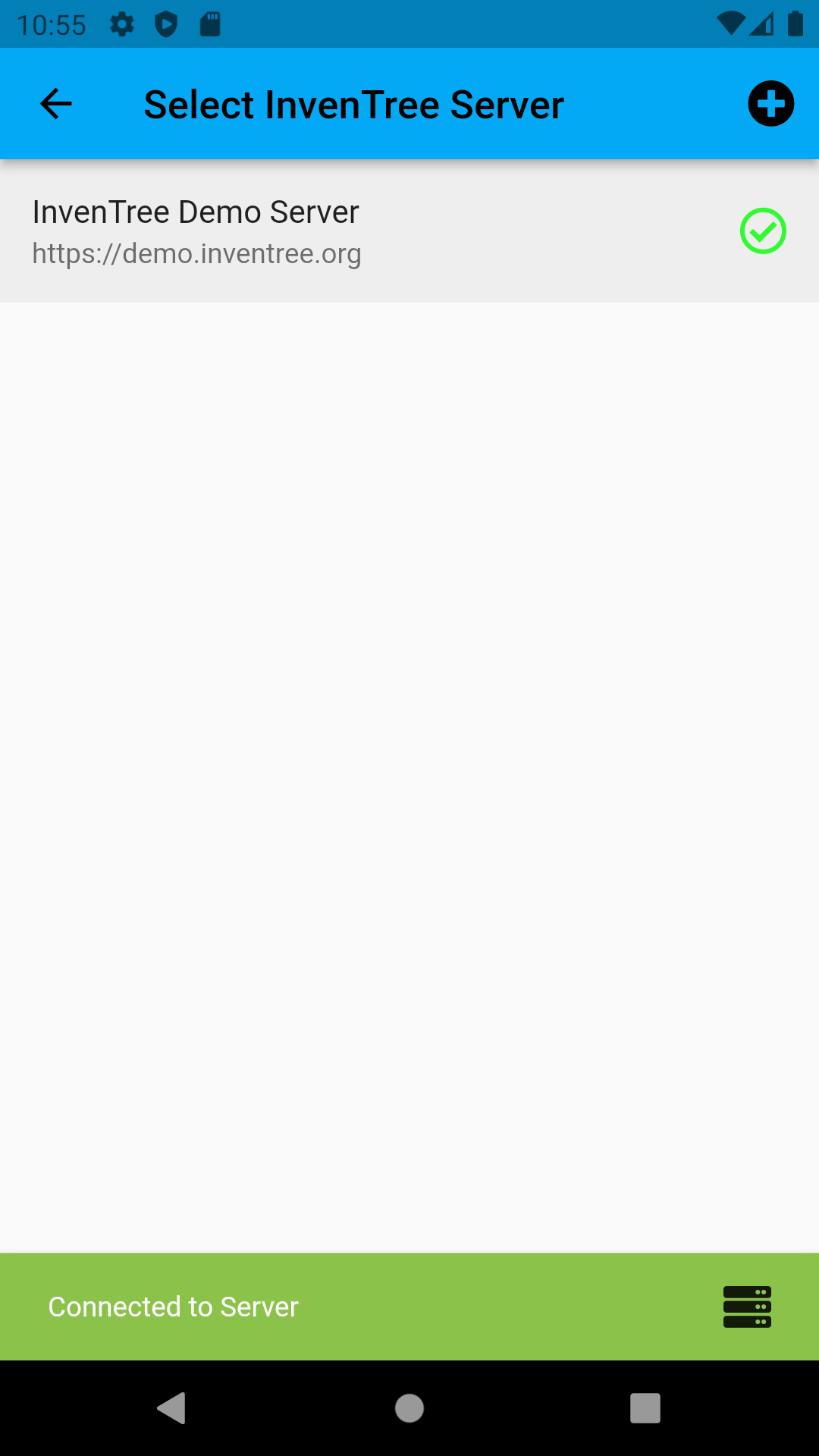
When the app successfully connects to the server, a success message is briefly displayed at the bottom of the screen. A green icon next to the server profile indicate that the profile is currently selected and also the connection was successful.
Connection Failure
If (for whatever reason) the app does not successfully connect to the InvenTree server, a failure message is displayed, and a red icon is displayed next to the server profile.
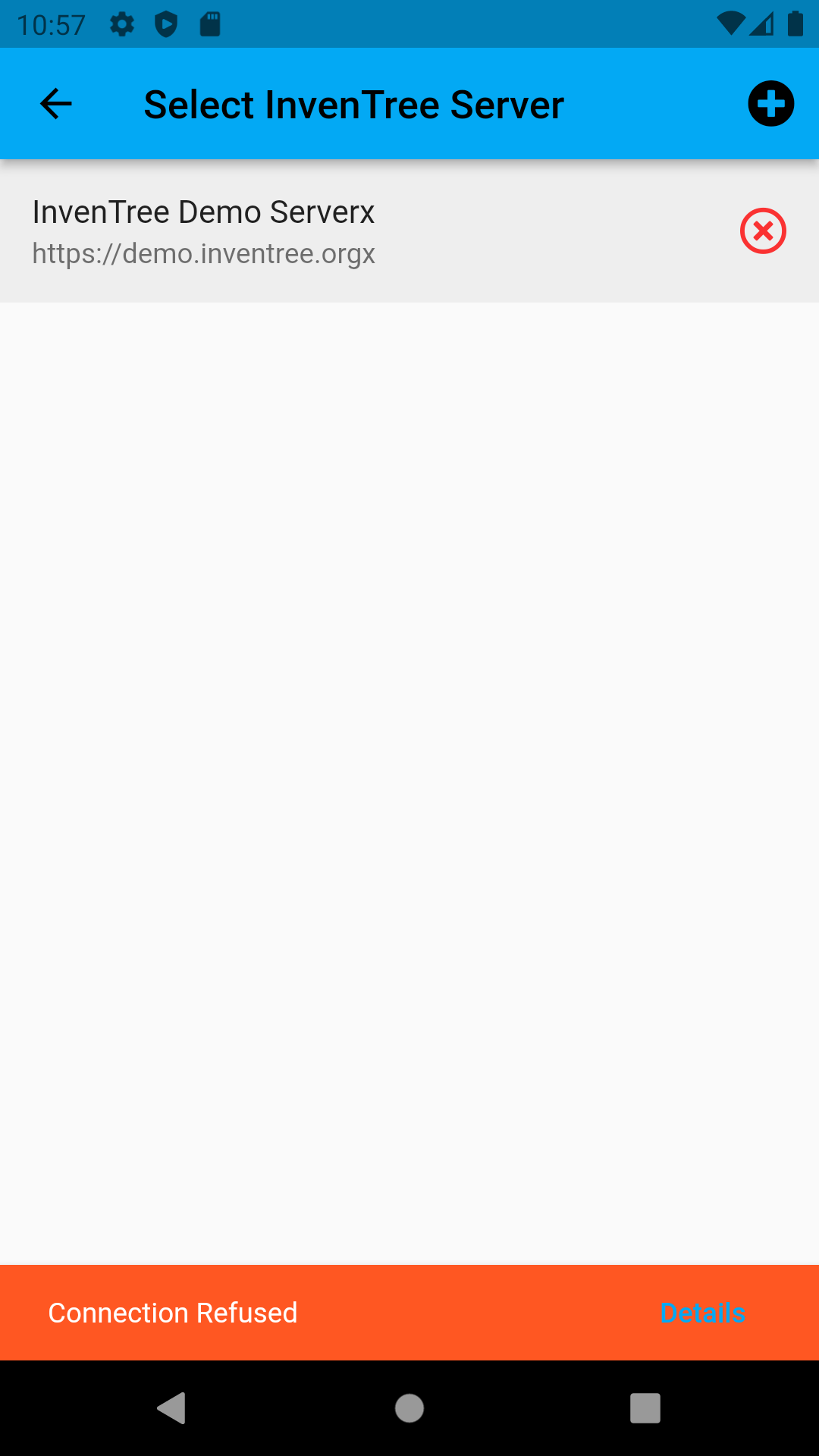
In this case, the error message displayed at the bottom of the screen provides context as to why the app could not successfully connect to the server.
To edit the server profile details, long press on the server profile, and select Edit Server Profile: